NOB IPTV Windows PC Setup Guide
Configure NOB IPTV on your Windows 10 or Windows 11 desktop computer or laptop using a supported media player application or modern browser.
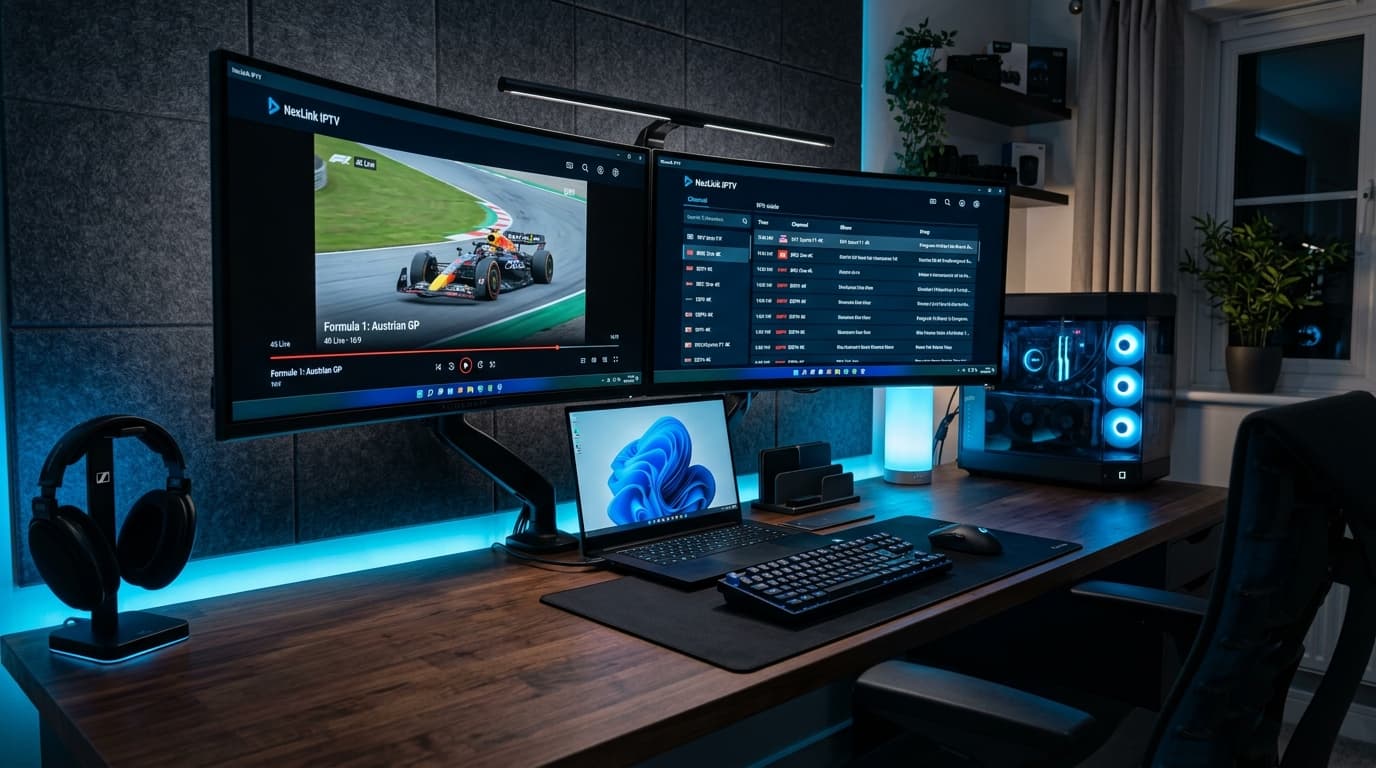
High-Speed HD & 4K IPTV Streaming on Windows PC
Before You Start
Ensure you have the following prerequisites ready before starting your NOB IPTV configuration:
Your NOB IPTV login details or playlist link received via email
PC or laptop running Microsoft Windows 10 or Windows 11 (64-bit)
Broadband connection of 20 Mbps or higher for stable streaming
Supported Windows IPTV player software or media player
Install the Required Application
Download and install a supported media player application on your Windows PC. You can choose a dedicated player from the Microsoft Store or a supported desktop client.
- Open Microsoft Store or download the official installer for your chosen player.
- Complete standard Windows installation prompts.
Windows installer wizard or Microsoft Store download page.
Open the Application
Launch the application from your Windows Start Menu or Desktop shortcut. Ensure your firewall allows network communication for the app.
- Open the installed application from the Start Menu.
- If Windows Defender Firewall prompts, allow Private network access.
Main desktop window showing initial setup / profile manager.
Enter the Information Supplied After Purchase
Select 'Add New User / Playlist' and choose Xtream Codes API. Copy and paste your NOB IPTV username, password, and server URL from your activation email.
- Set Profile Name as 'NOB IPTV'.
- Copy and paste your username and password to prevent typos.
- Input the Server URL provided in your email.
Windows credential entry dialog with Username, Password, and URL inputs.
Complete Configuration
Click 'Save' or 'Login'. The application will authenticate and load the complete list of channels, categories, and program schedules.
- Wait for the channel database to sync.
- Verify that Live TV and VOD lists populate.
Sync progress dialog on Windows showing categories loading.
Start Using the Service
Your NOB IPTV stream is now configured on Windows. Use your keyboard and mouse to browse categories, search channels, or expand to full-screen view.
- Click on any authorized channel to begin streaming.
- Press F11 or double-click to toggle full-screen mode.
Windows desktop player window with channel list on left and video on right.
Need Help with Windows PC Setup?
Our support team is ready to guide you through any configuration questions or technical issues.