NOB IPTV Amazon Fire TV Setup Guide
This comprehensive walkthrough guides you through setting up NOB IPTV on any Amazon Fire TV Stick, Fire TV Cube, or Fire TV Edition smart display.
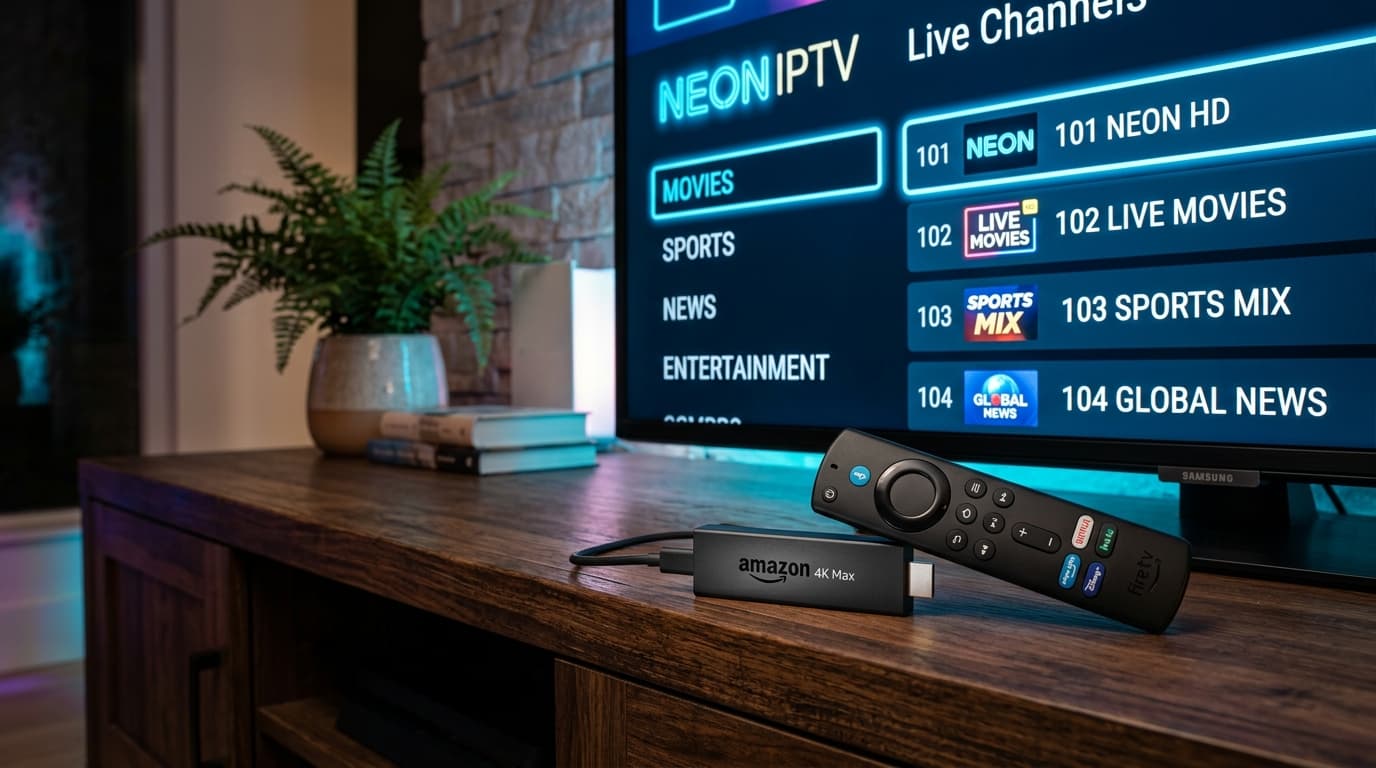
High-Speed HD & 4K IPTV Streaming on Amazon Fire TV
Before You Start
Ensure you have the following prerequisites ready before starting your NOB IPTV configuration:
Your NOB IPTV service credentials and server information sent via email
Amazon Fire TV Stick (2nd Gen, 4K, 4K Max) or Fire TV Cube
Broadband connection of 25 Mbps or higher for uninterrupted HD/4K
Downloader application or supported player app available on Amazon Appstore
Install the Required Application
From your Fire TV home screen, navigate to the 'Find' or 'Search' icon. Search for the 'Downloader' app from the Amazon Appstore and install it. Use it to install your preferred compatible media player.
- Search for 'Downloader' in the Amazon Appstore.
- Click 'Get' or 'Download' to install the application.
- Ensure required permissions are granted to allow app installation.
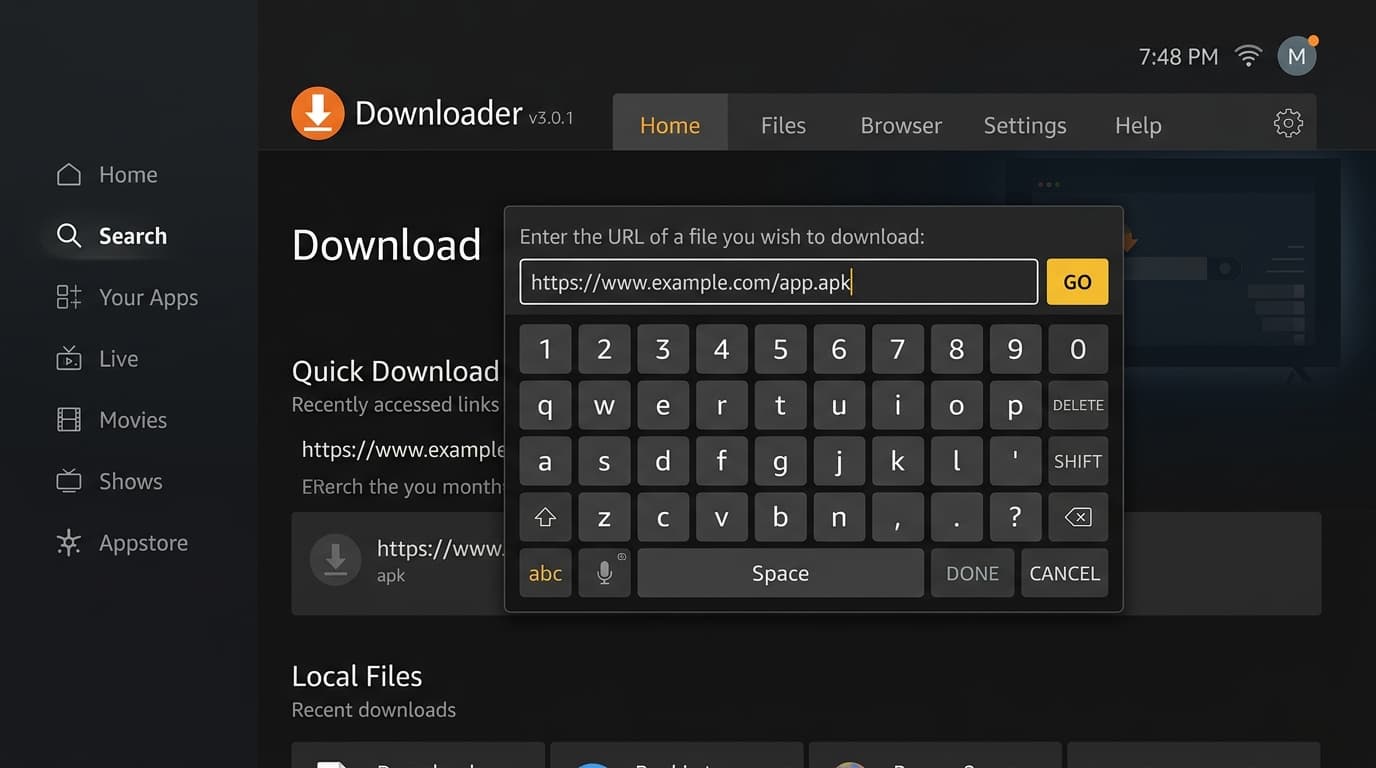
Amazon Appstore search result showing Downloader application tile.
Open the Application
Open the downloaded player application from your 'Your Apps & Channels' grid on your Fire TV device.
- Hold the Home button on your Fire TV remote and select 'Apps'.
- Click on the newly installed player to launch it.
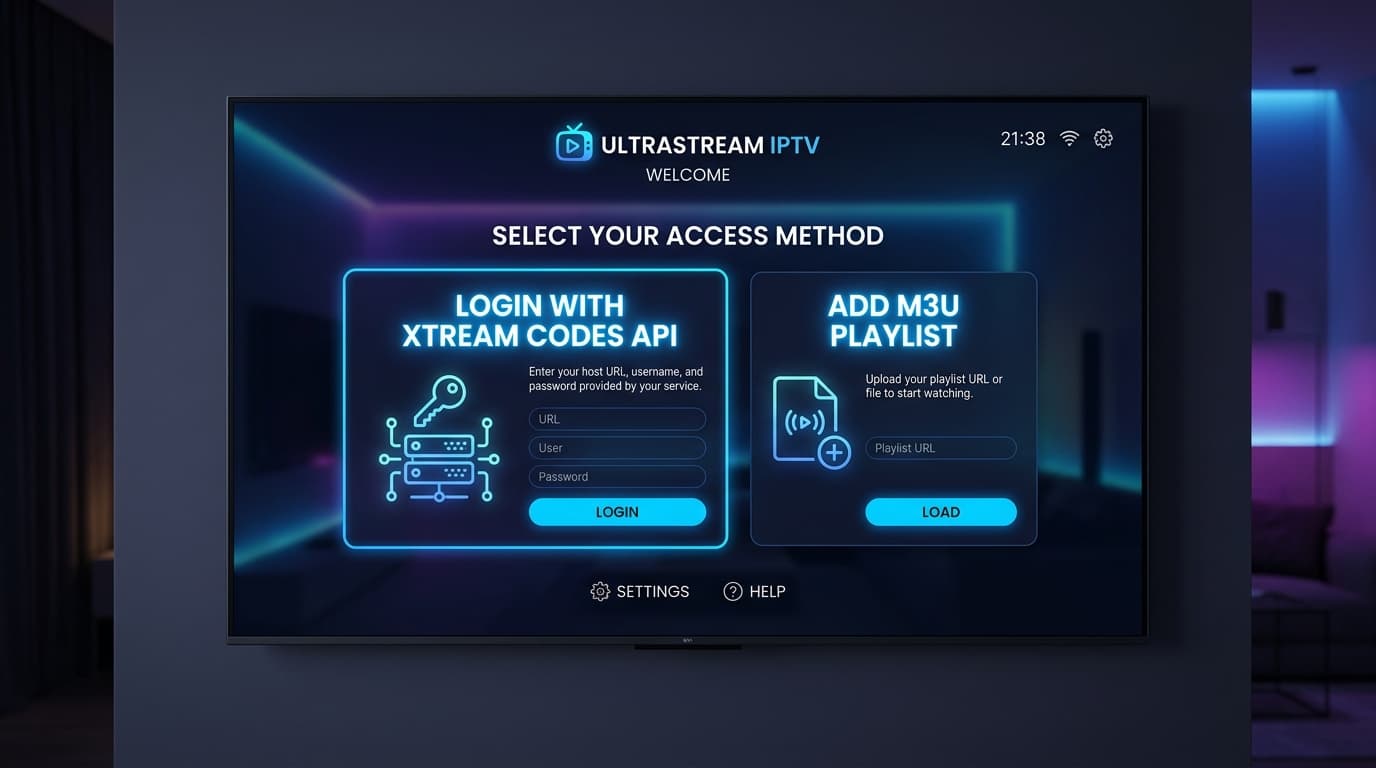
App launch screen showing setup prompt or login choice.
Enter the Information Supplied After Purchase
Select the option to log in using Xtream Codes API. Enter your NOB IPTV connection details exactly as delivered in your activation email.
- Enter 'NOB IPTV' in the Profile Name field.
- Type in your username and password provided in your order email.
- Type in the server URL accurately.
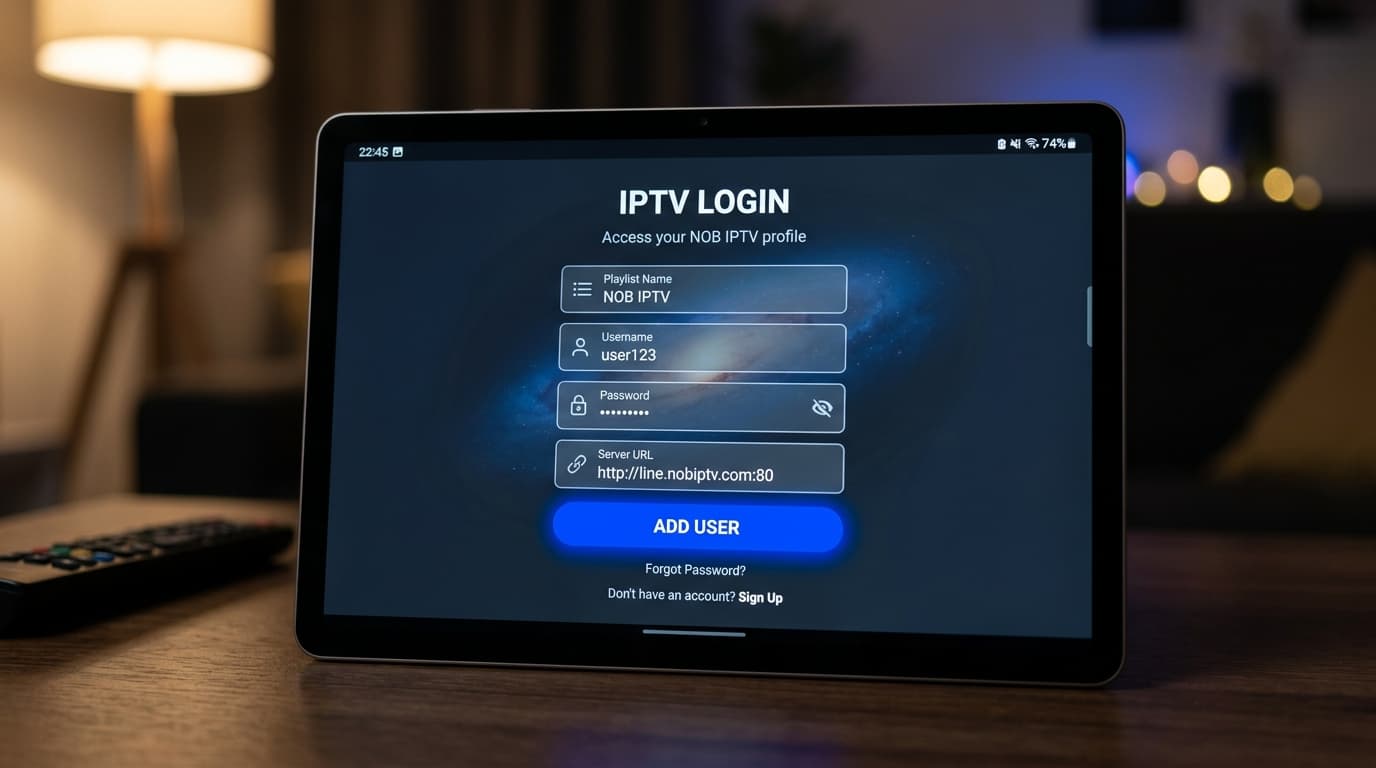
Credential entry interface on Fire TV with onscreen keyboard.
Complete Configuration
Click 'Add User' or 'Sign In'. Allow the Fire TV application to sync and organize the live channel feeds and electronic guide data.
- Wait for the channel library to finish downloading.
- Verify that category groups are loaded properly.
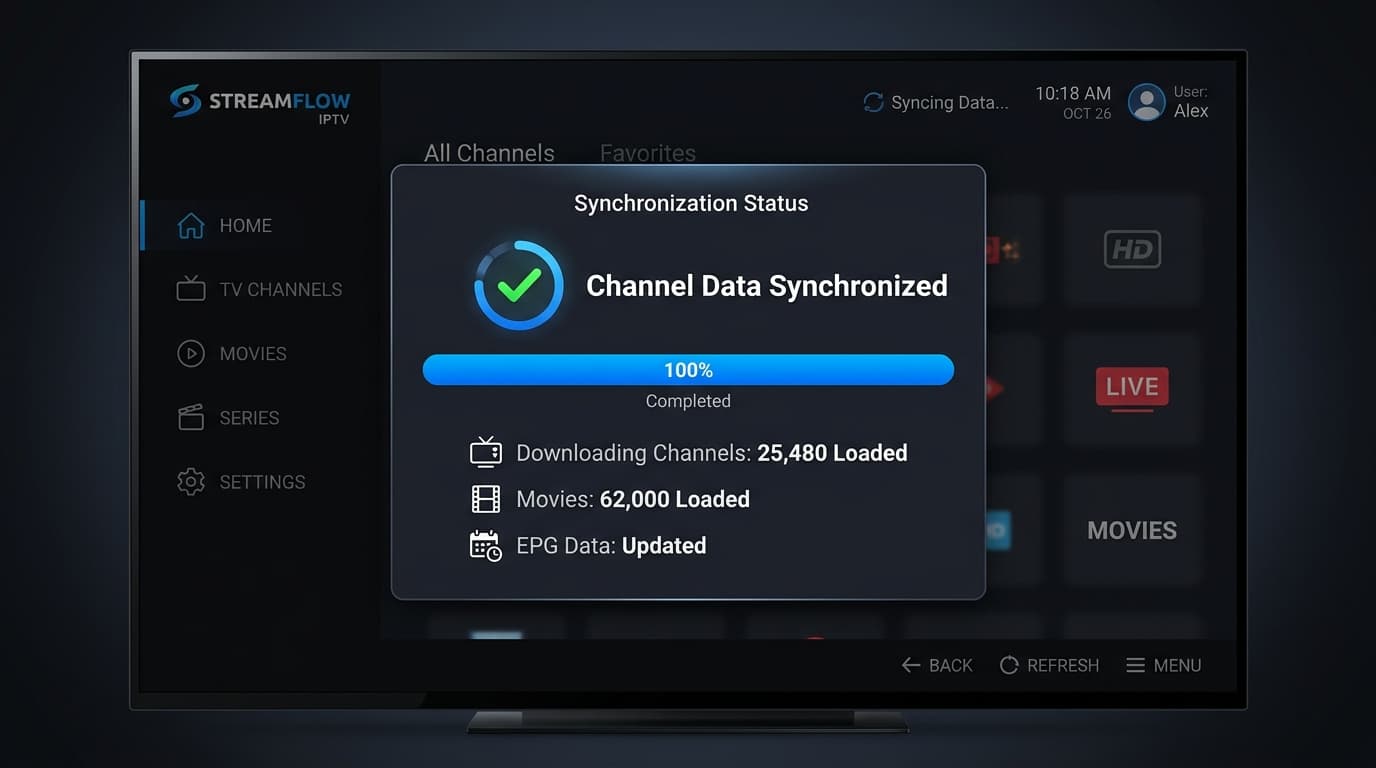
Download screen showing progress for Live, VOD, and EPG data.
Start Using the Service
You are now ready to stream with NOB IPTV on Fire TV. Use your Alexa Voice Remote to browse, pause, and watch your authorized content.
- Open Live TV to view your channel list.
- Select any authorized channel to begin streaming in high definition.
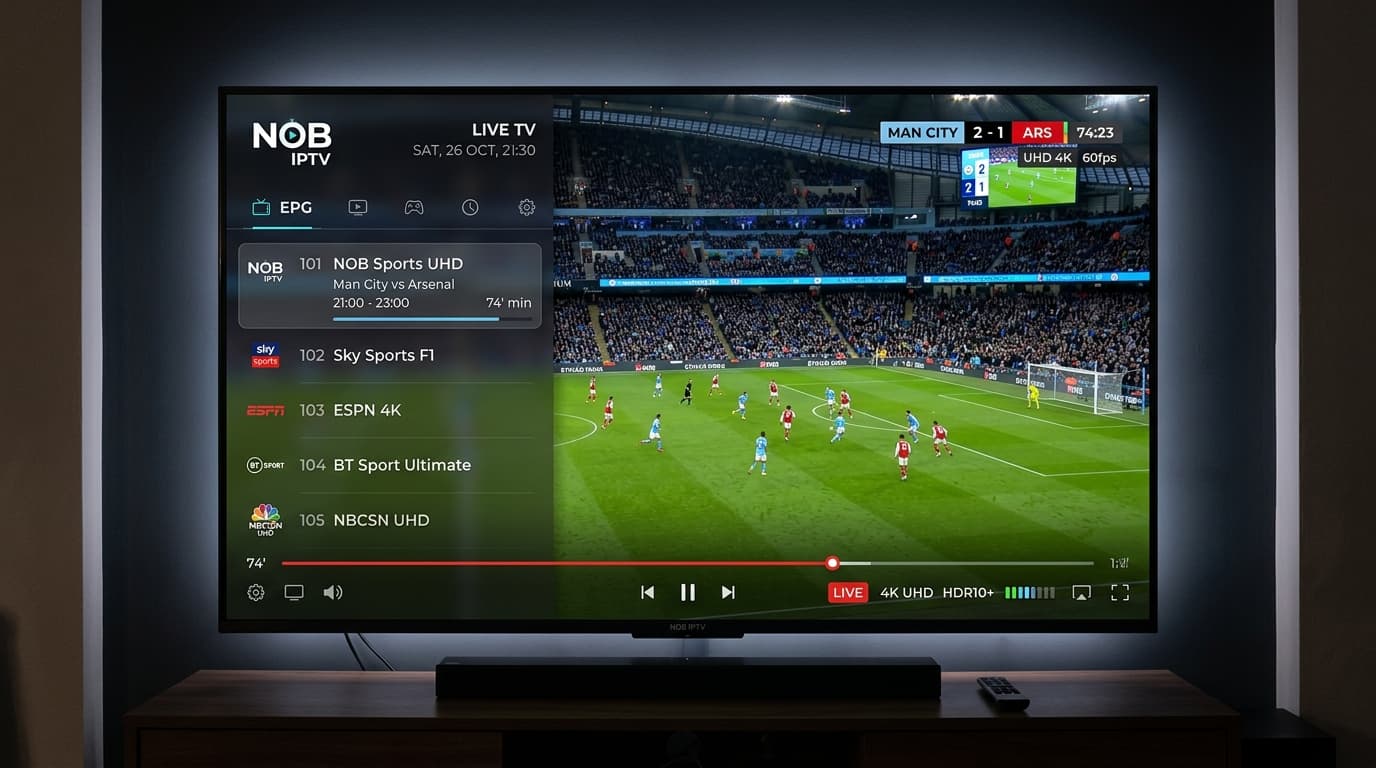
Channel overview and playback screen on Fire TV.
Need Help with Amazon Fire TV Setup?
Our support team is ready to guide you through any configuration questions or technical issues.