NOB IPTV Android TV / Google TV Setup Guide
Configure NOB IPTV on any Android TV or Google TV device (such as Sony, TCL, Hisense, Chromecast with Google TV, or NVIDIA Shield) via the Google Play Store.
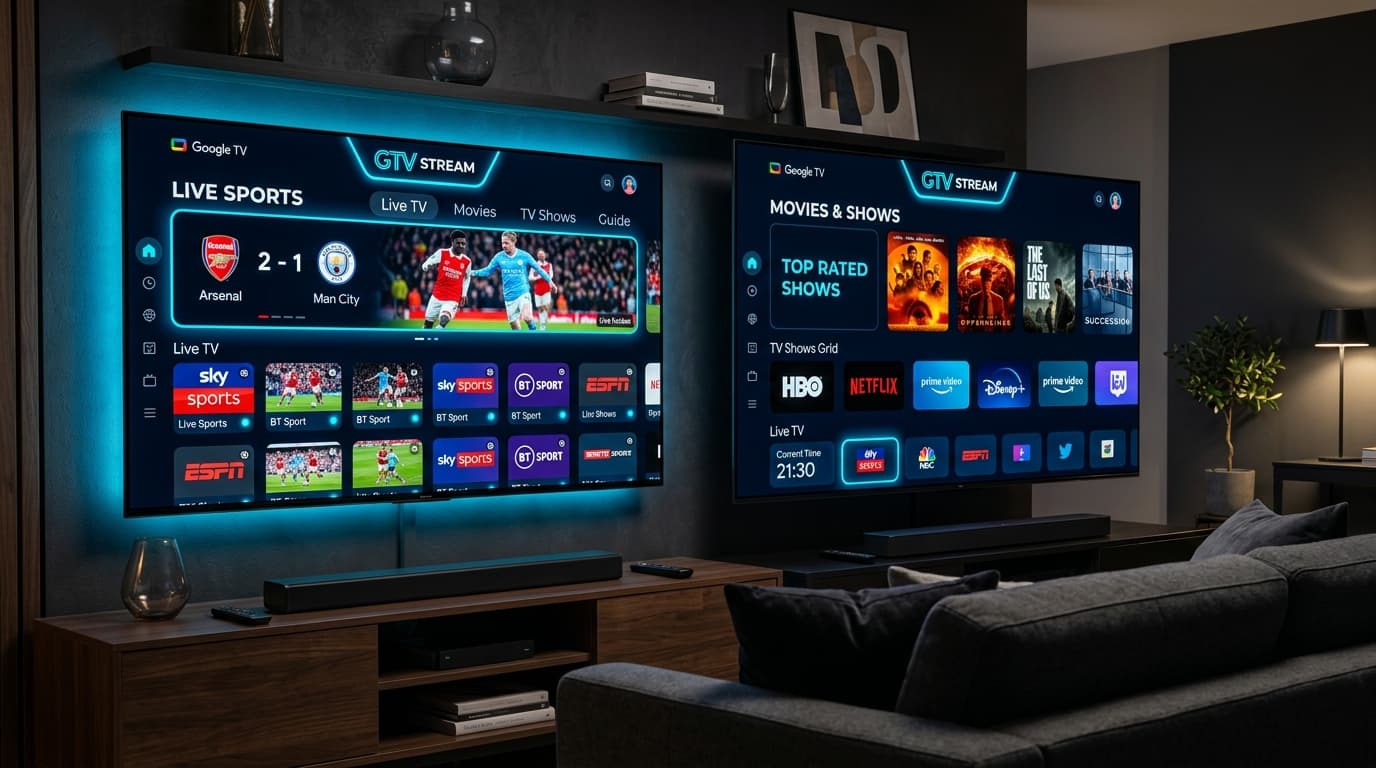
High-Speed HD & 4K IPTV Streaming on Android TV / Google TV
Before You Start
Ensure you have the following prerequisites ready before starting your NOB IPTV configuration:
Your NOB IPTV server details and login credentials received via email
Television or streaming box running Android TV OS 8.0+ or Google TV
Stable connection of 25 Mbps or higher for uninterrupted HD/4K playback
Supported IPTV client application downloaded directly from Google Play Store
Install the Required Application
Open the Google Play Store on your Android TV or Google TV. Search for your preferred IPTV client application and click 'Install'.
- Navigate to the Apps section on your Android TV home screen.
- Open Google Play Store and enter the search query.
- Select the application and click Install.
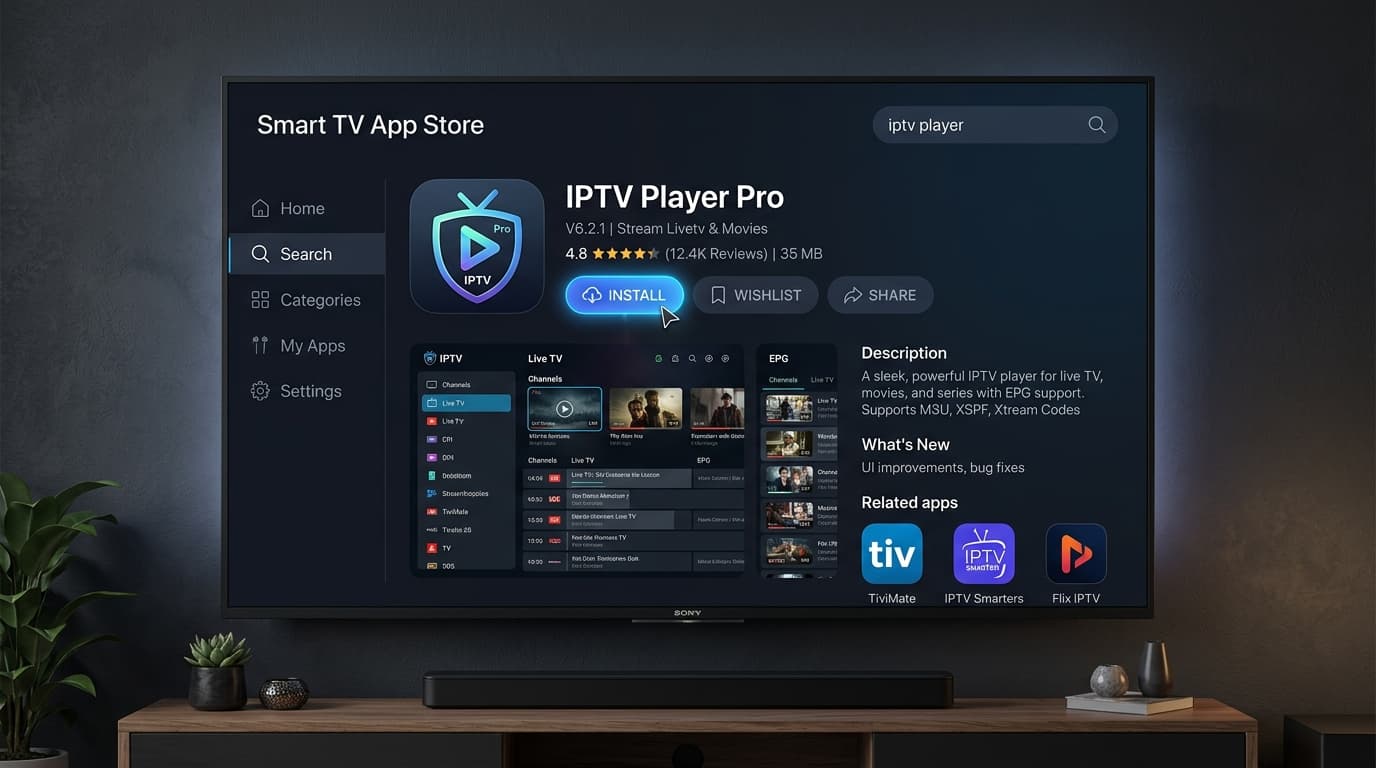
Google Play Store interface with search bar showing compatible IPTV player application.
Open the Application
Once downloaded, open the application directly from the Play Store or from your TV Apps bar. Grant any requested local network permissions.
- Click 'Open' or launch from the Apps row on your home screen.
- Allow required storage and network permissions if prompted.
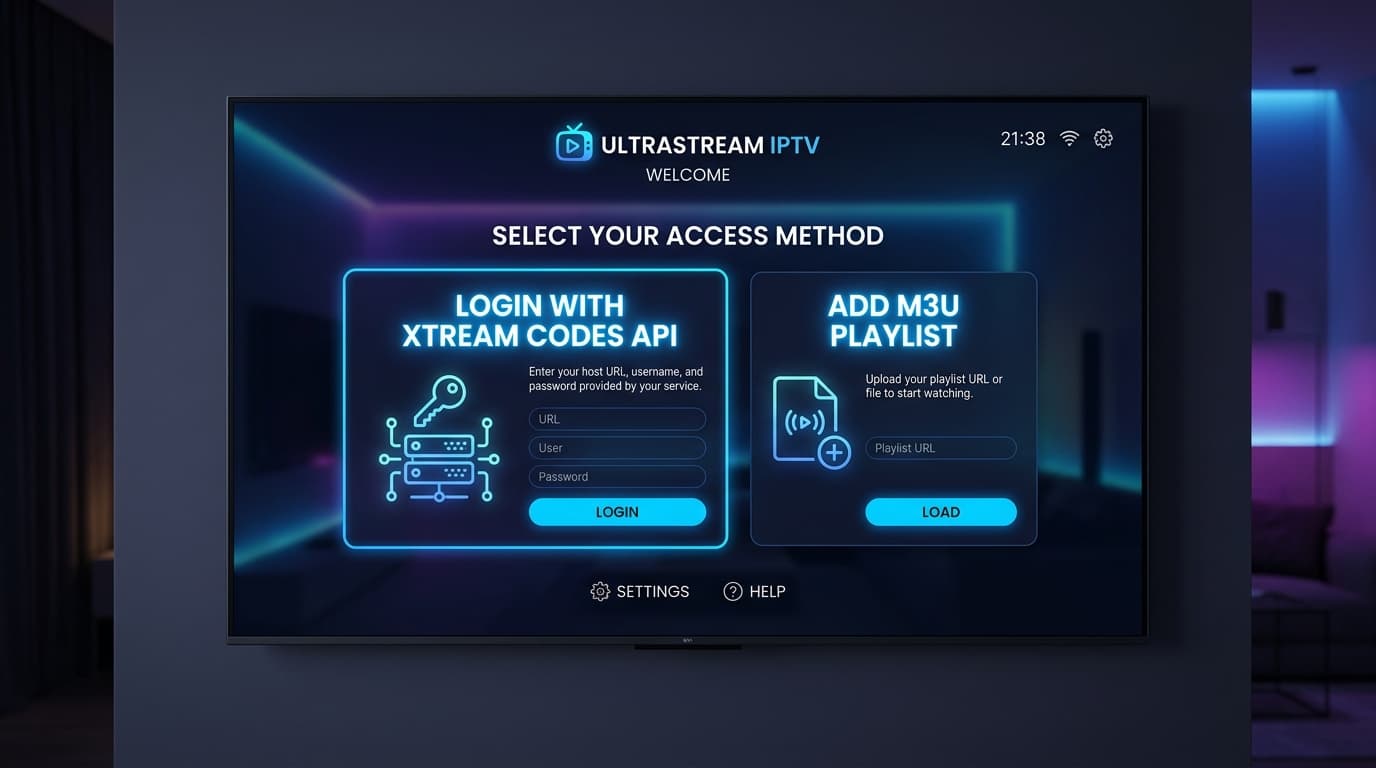
App launch screen with options to add first user profile or playlist.
Enter the Information Supplied After Purchase
Select 'Add User' or 'Login with Xtream Codes API'. Carefully enter the username, password, and server URL sent to your registered email address.
- Input 'NOB IPTV' as the Profile or Any Name field.
- Enter your unique username and password provided in your activation email.
- Input the complete Server URL without trailing slashes.
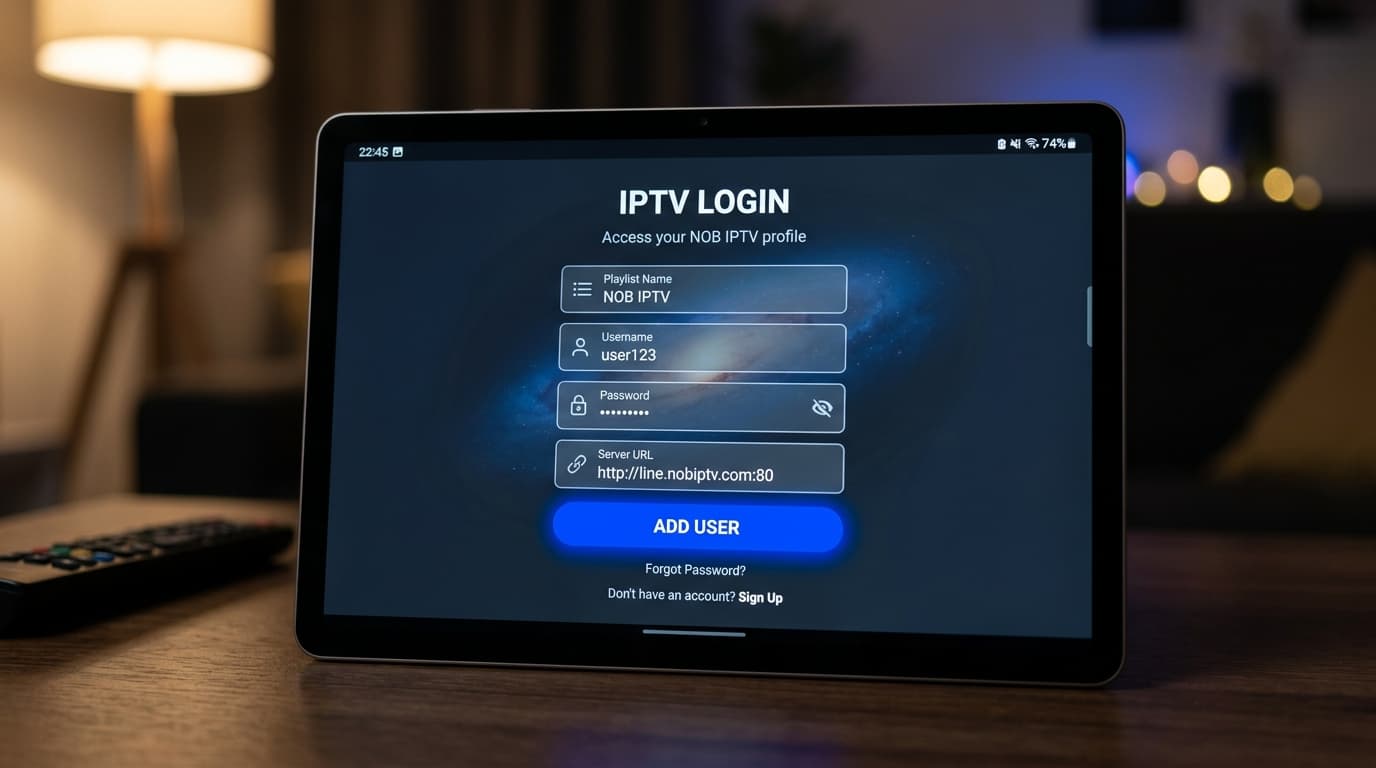
Login form with fields: Any Name, Username, Password, and Server URL.
Complete Configuration
Press 'Add User' or 'Save'. The application will authenticate with the NOB IPTV servers and download channel lists, VOD directories, and program schedules.
- Wait for the download progress to reach 100%.
- Optionally configure hardware acceleration and audio pass-through in settings.
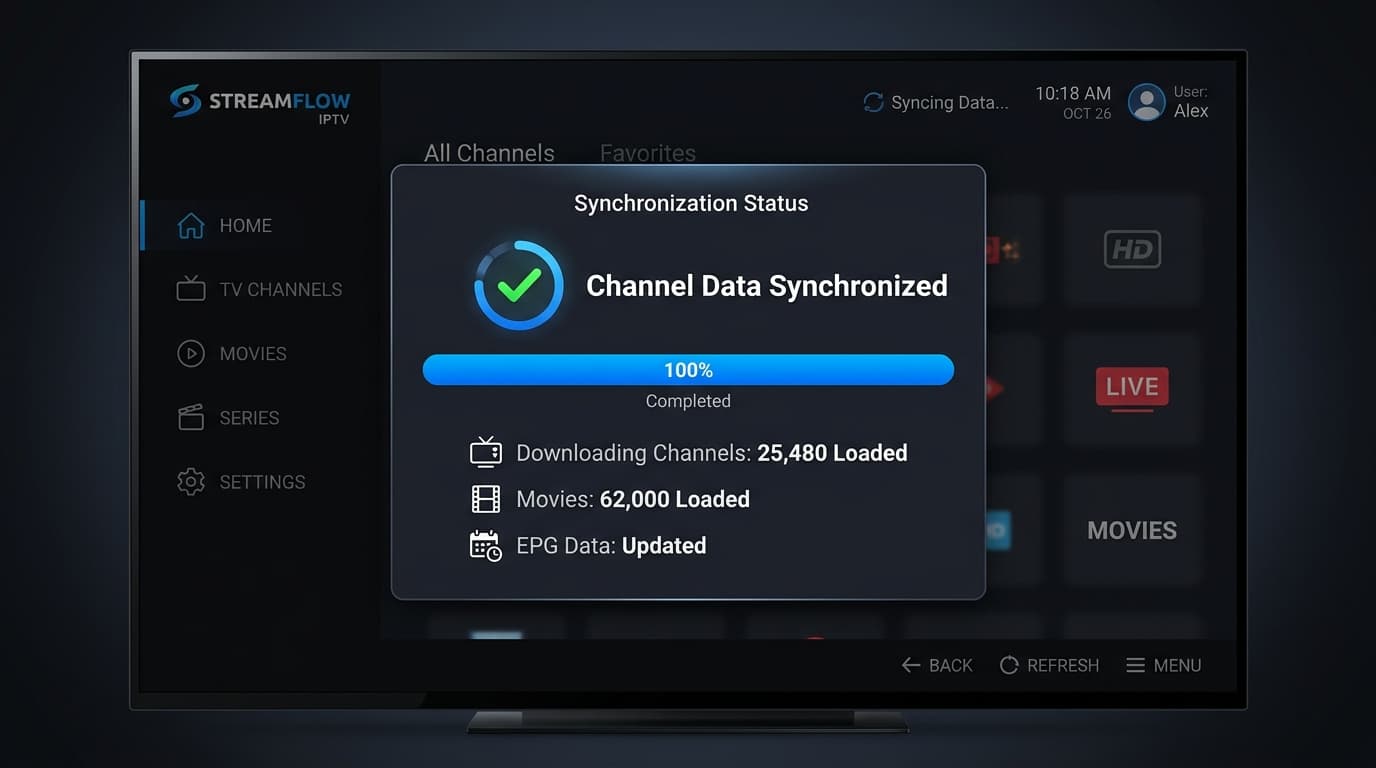
Sync progress dialog showing Channels, Movies, and Series loading.
Start Using the Service
Your NOB IPTV service is now fully active. Use your remote control directional pad to navigate Live TV, categories, and catch-up programs.
- Choose Live TV to view channel groups.
- Select any authorized stream to start watching.
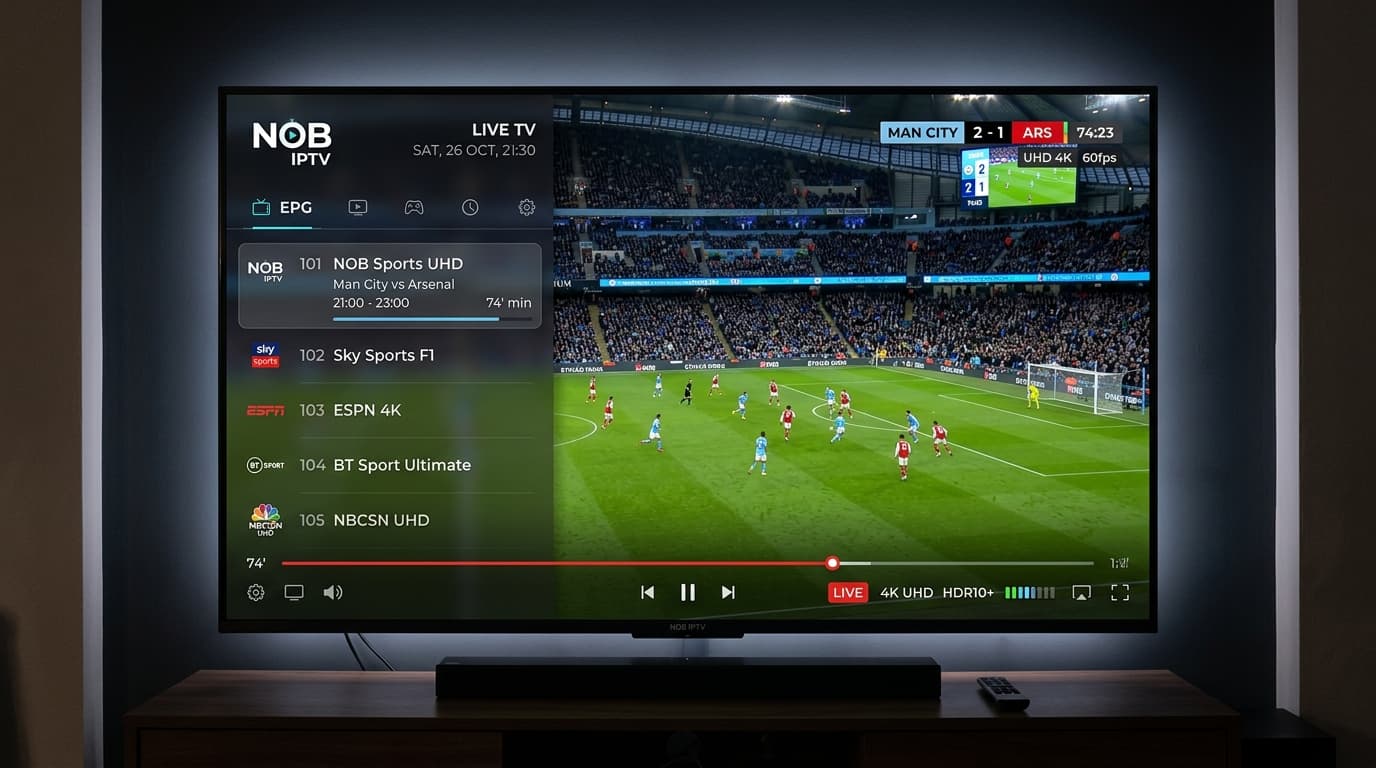
Main menu showing Live TV, Movies, Series, and Settings tiles.
Need Help with Android TV / Google TV Setup?
Our support team is ready to guide you through any configuration questions or technical issues.