IPTV on Roku TV: The Complete Technical Guide and Working Methods
Attempting to stream IPTV on Roku TV is one of the most common points of confusion for cord-cutters. You set up a smart TV from TCL, Hisense, or Onn, expect to download familiar players like TiviMate or IPTV Smarters from the store, and quickly discover that neither app exists.
Searching online often leads to misleading claims that you can "open Downloader on Roku" or "sideload APK files." Both claims are technically impossible due to Roku OS architecture. This guide provides the honest technical reality, explains how to use verified methods like Web Video Caster and AirPlay 2, and details the best hardware bypass configurations for zero-buffering playback.
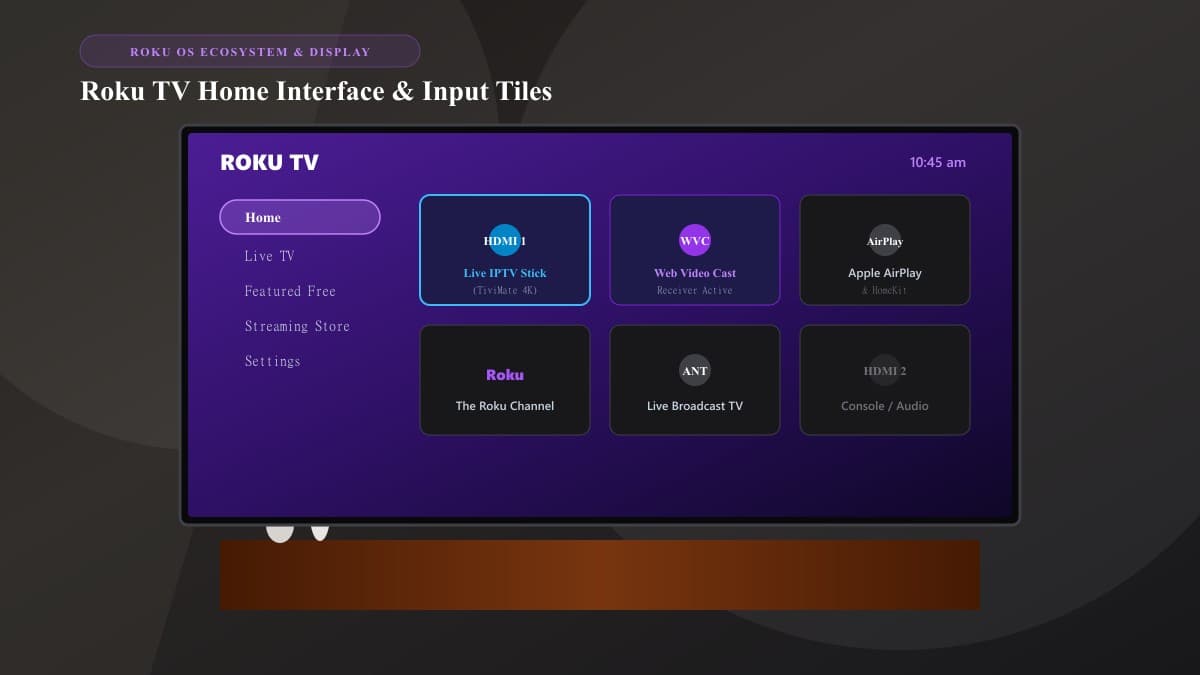
Can You Install IPTV Directly on Roku TV? (The Technical Truth)
The short answer is no, you cannot install traditional standalone Android IPTV players directly on Roku OS. Understanding why saves hours of wasted effort trying to sideload unsupported packages:
- • Open Linux-based operating system
- • Executes standard compiled
.apkbinaries - • Supports independent sideloading via Downloader
- • Native hardware decoders (MediaCodec) built-in
- • Proprietary sandboxed Linux operating system
- • Requires BrightScript & Roku SceneGraph (.pkg)
- • Sideloading Android APKs is physically impossible
- • Private and uncertified vanity channels are banned
3 Working Methods to Stream IPTV on Roku TV in 2026
While direct app installation is not supported, you can reliably deliver your IPTV stream to Roku TV using three verified approaches:
| Method | Stream Stability | EPG Guide Support | Control Mechanism | Best Use Case |
|---|---|---|---|---|
| 1. Web Video Caster | High (Direct IP Stream) | Mobile Screen | Phone + Roku Remote | Daily live TV without extra cost |
| 2. AirPlay 2 / Miracast | Moderate (Wi-Fi bound) | Mirrored Display | Phone Controls Only | Quick live sports & casual viewing |
| 3. External 4K HDMI Stick | Superior (Dedicated SoC) | Full On-Screen TV Guide | Physical Remote | Ultimate cable-like experience |
Method 1 Deep-Dive: Step-by-Step Web Video Caster Setup
Web Video Caster is the premier software workaround for Roku TV. Unlike standard screen mirroring—which forces your phone screen to remain on and strains its battery—Web Video Caster passes the stream URL to a receiver channel on Roku TV. Your Roku TV then pulls the stream packets directly from the server:
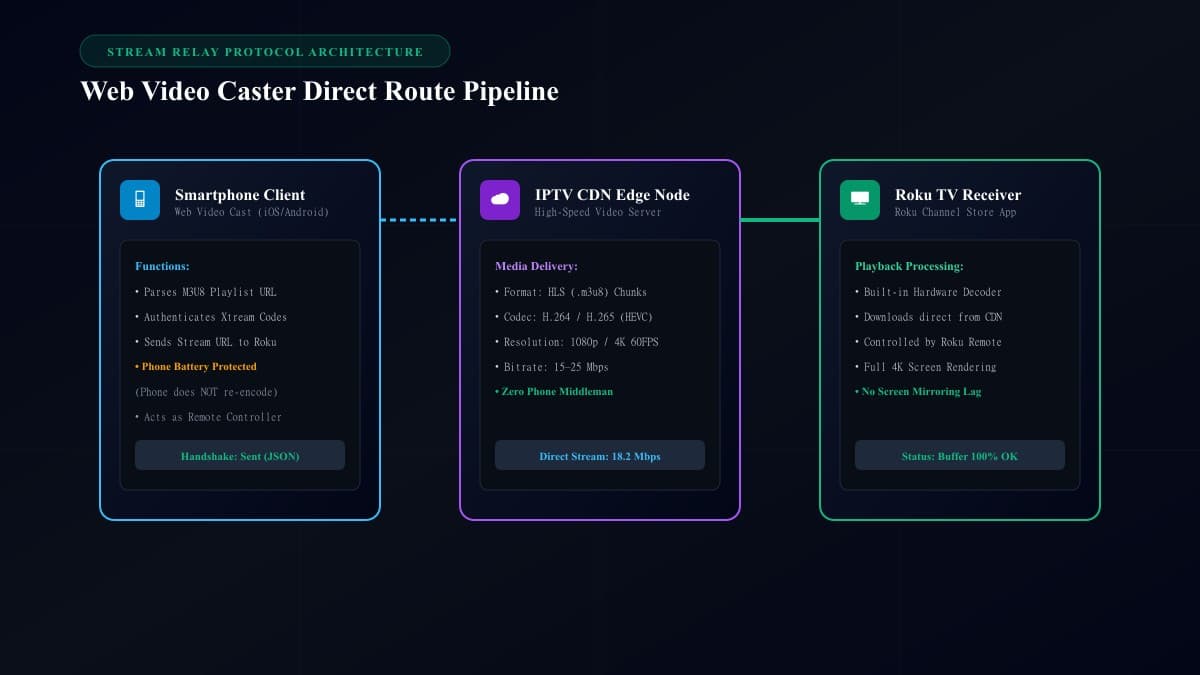
1Add Web Video Caster Receiver to Roku TV
From the Roku home screen, go to Streaming Store > Search and type Web Video Caster. Add the free Web Video Caster - Receiver channel.
2Install Mobile Companion App
Install Web Video Cast on your iOS or Android phone. Ensure your mobile device is connected to the exact same Wi-Fi network (preferably 5 GHz) as your Roku TV.
3Load Your IPTV Playlist
In the mobile app, tap the top-left menu > IPTV > + (Add Playlist). Paste your M3U URL or enter your Xtream Codes credentials.
4Cast Directly to Roku
Tap the Cast icon at the top of the mobile app, choose your Roku TV, select a live channel, and tap Play. The video will render on your television in full resolution, allowing you to lock your phone without interrupting playback.
Method 2 Deep-Dive: Casting via Apple AirPlay 2 & Android Smart View
If you prefer not to install third-party receiver channels, native screen casting protocols built into modern Roku OS firmware provide immediate plug-and-play viewing:
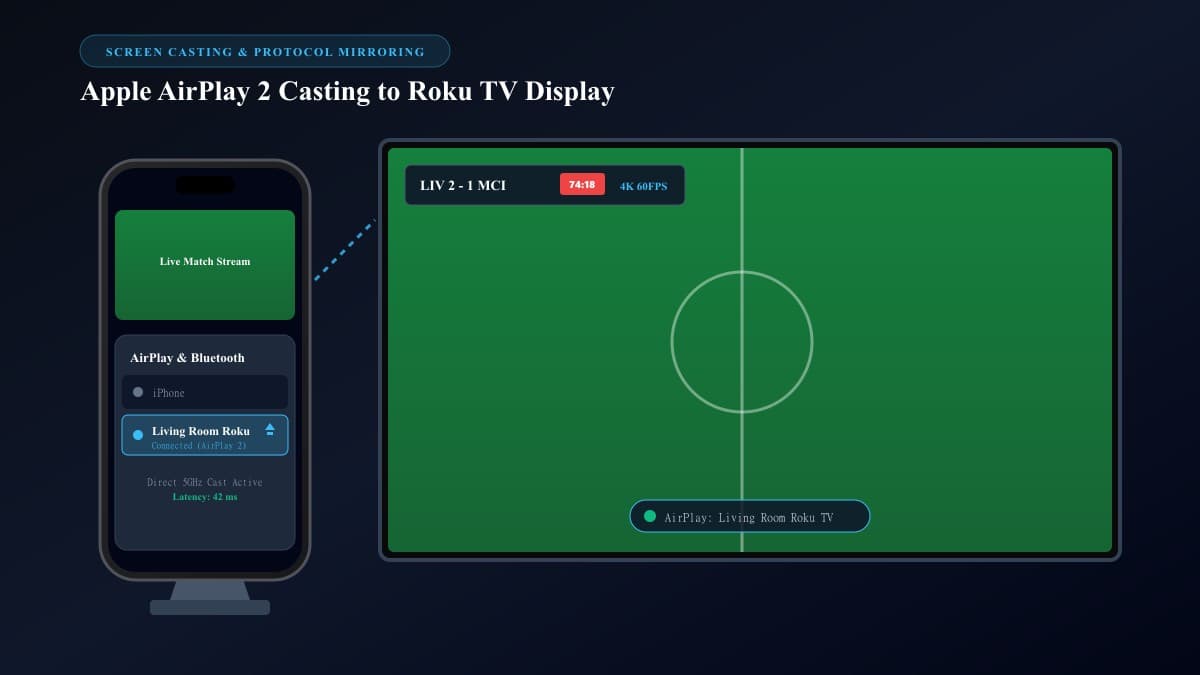
Apple AirPlay 2 (iOS / macOS)
Open Settings > Apple AirPlay and HomeKit on your Roku TV and turn AirPlay ON. On your iPhone, run any IPTV player (such as GSE Smart IPTV or UHF), tap the AirPlay icon, and pair with your Roku TV.
Android Smart View / Miracast
Open Settings > System > Screen Mirroring on Roku and select "Always Allow". Swipe down your Android notification shade, tap Smart View / Cast, and mirror your live player screen.
Why Adding a $30 HDMI Streaming Stick to Your Roku TV Is Often the Best Choice
While software casting bridges the gap, it requires using a mobile phone as an intermediary. For households seeking an effortless, primary television experience, plugging a low-cost streaming device like an Amazon Fire TV Stick 4K into HDMI Port 1 delivers an unmatched viewing upgrade:
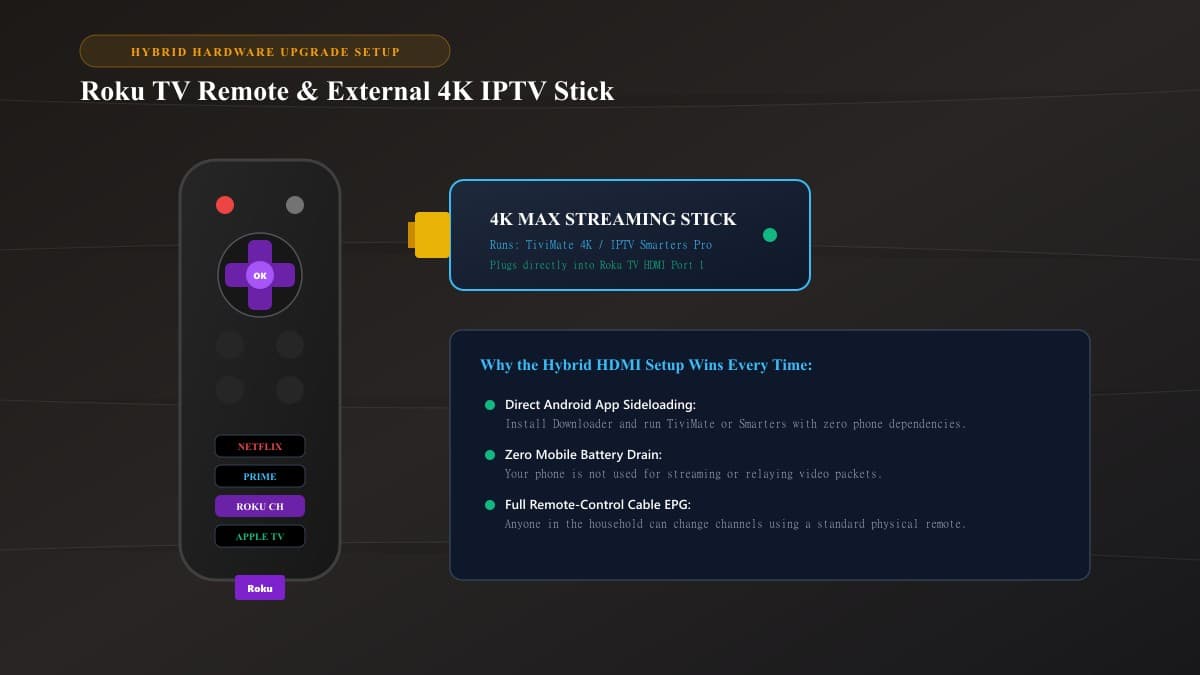
- Native TiviMate & Smarters: Enjoy instant channel zapping, horizontal cable-style EPG guides, and multi-view sports layouts directly on your TV screen.
- Zero Phone Dependence: Your mobile phone remains free for calls and messages with zero battery drain.
- Physical Remote Navigation: Any family member can navigate channels, change volume, and manage favorites with a physical remote control.
How to Stop Buffering When Streaming IPTV to Roku TV
If your stream stutters when casting to a Roku TV, implement these quick network fixes:
Use 5 GHz Wi-Fi
2.4 GHz bands suffer local packet congestion. Move both Roku and your phone to 5 GHz to ensure smooth 60 FPS video delivery.
Enable Direct Routing
In Web Video Caster settings, set "Route video through phone" to OFF so your Roku TV downloads directly from the CDN server.
Clear Roku Cache
Press Home 5x, Up 1x, Rewind 2x, and Fast-Forward 2x on your Roku remote to perform a clean hardware memory reboot.
Frequently Asked Questions About IPTV on Roku TV
Can I install Downloader or TiviMate directly on Roku TV?
No. Roku OS runs on BrightScript and Roku SceneGraph, not Android. Android APK files and the Downloader tool cannot execute on Roku TV hardware.
Does streaming IPTV damage or void my Roku TV warranty?
No. Streaming through approved store channels like Web Video Caster or mirroring via Apple AirPlay 2 utilizes built-in, supported operating system features without modifying firmware.
Why does the stream pause when my phone screen turns off?
This happens when your phone’s battery optimization closes background network processes. In your phone settings, set the casting app battery profile to Unrestricted and turn off background execution limits.
What is the best overall way to watch IPTV on a Roku TV?
While Web Video Caster is an effective free software workaround, adding a low-cost Amazon Firestick 4K to an HDMI port provides a superior experience with native TiviMate cable guide navigation and a physical remote.
Related Smart TV & Device Guides
Ready to Experience nobiptv?
Join thousands of satisfied viewers. Get the best IPTV services with our premium IPTV subscriptions, instant activation, and 24/7 dedicated support.