IPTV Firestick: The Complete Technical Setup and Performance Guide
Running IPTV on a Firestick is the most popular cord-cutting combination in modern home entertainment. Amazon’s Fire TV Stick packs dedicated hardware video decoders into an affordable, ultra-portable HDMI form factor. However, streaming live television over IP networks requires a clear understanding of how Fire OS processes real-time video feeds.
When users encounter freezing, audio drift, or sudden app closures on an iptv firestick setup, the issue is rarely a shortage of raw internet speed. Instead, the bottleneck usually lies in local memory overhead, thermal constraints, or unoptimized video decoding settings. This comprehensive guide covers everything from transport protocols to step-by-step setup and hardware tuning.
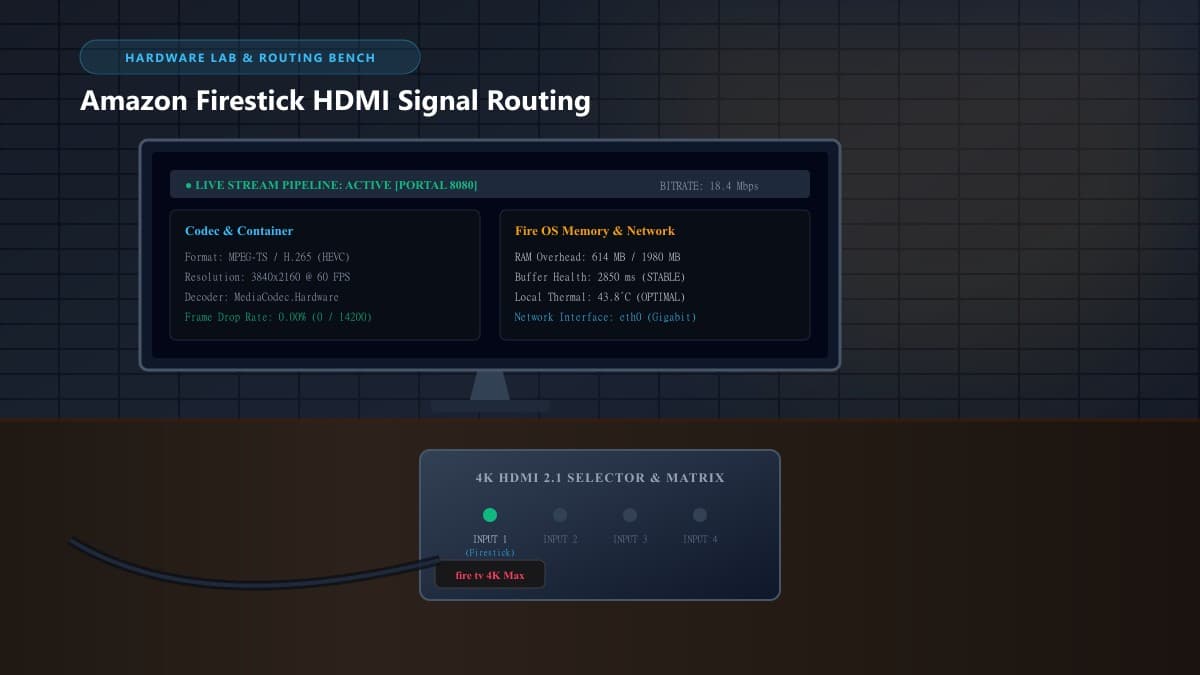
Understanding IPTV on Amazon Firestick: How Does It Work?
Internet Protocol Television delivers live broadcasts and on-demand media through IP packets over the public internet rather than traditional coaxial cable or satellite frequencies. On an Amazon Firestick, this client-server connection relies on several distinct software layers:
Live streams arrive formatted as HLS (.m3u8) chunks or continuous MPEG-TS (.ts) packets over HTTP/HTTPS.
The Fire OS hardware video decoder decompresses H.265 (HEVC) and AV1 feeds without overloading CPU cores.
Applications like TiviMate or IPTV Smarters present the channel matrix, parse the EPG, and buffer stream packets in RAM.
M3U Playlists vs. Xtream Codes API Protocols
When pairing a subscription with Fire OS, you will encounter two primary authentication models:
- M3U Playlists: A raw text file containing channel names, category headers, and direct streaming URLs. When an M3U playlist exceeds 15,000 channels, loading the entire text file into memory can exceed the Firestick's available RAM and cause the player to freeze.
- Xtream Codes API: A structured REST API that requests categories, channel lists, and TV guide data on demand via JSON. This drastically reduces RAM usage and delivers instant category navigation on Fire OS.
Fire OS Architecture and Background Constraints
Fire OS is derived from Android and employs an aggressive process scheduler called the Low Memory Killer (LMK). When an IPTV player consumes more memory than the operating system can spare—frequently triggered by bloated EPG databases—Fire OS will silently terminate the app back to the home screen. Keeping your channel index clean is essential to avoid sudden dropouts.
Hardware Requirements: Choosing the Right Firestick Model
Not all Amazon streaming devices handle continuous live video identically. Hardware specifications directly dictate how many days of guide data you can cache and whether 4K 60 FPS sports streams run without frame drops:
| Device Model | RAM / Storage | Processor | Wi-Fi Spec | IPTV Suitability |
|---|---|---|---|---|
| Fire TV Stick Lite / HD | 1.0 GB / 8 GB | Quad-Core 1.7 GHz | Wi-Fi 5 | Basic 1080p Casual Use |
| Fire TV Stick 4K (2nd Gen) | 2.0 GB / 8 GB | Quad-Core 1.7 GHz | Wi-Fi 6 | Great for 4K Live TV |
| Fire TV Stick 4K Max (2nd Gen) | 2.0 GB / 16 GB | Quad-Core 2.0 GHz | Wi-Fi 6E (Tri-Band) | Top Pick: 60FPS Sports |
| Fire TV Cube (3rd Gen) | 2.0 GB / 16 GB | Octa-Core (2.2 GHz) | Wi-Fi 6E + Ethernet | Ultimate Multiview Beast |
For everyday live sports and responsive channel browsing, the Fire TV Stick 4K Max is the sweet spot. Its 16 GB of internal flash drive avoids the persistent storage exhaustion errors common on 8 GB devices.
Top Firestick IPTV Players Compared
Your IPTV provider supplies the stream URLs, but the media player provides your daily interface. The three leading player applications on Fire OS include:
1. TiviMate IPTV Player
Industry StandardWidely regarded as the premier player for Fire TV. It delivers a fast, cable-style horizontal electronic program guide (EPG), picture-in-picture, custom favorites groups, and flexible buffer size tuning.
2. IPTV Smarters Pro
Family & VODFeatures a divided dashboard separating Live TV, Movies, and Series. Supports multi-screen layouts (up to 4 simultaneous channels) and integrated subtitle selection.
3. XCIPTV Player
LightweightIntegrates ExoPlayer and VLC directly into its lightweight package. It runs efficiently on older 1 GB Fire TV sticks without consuming excessive system RAM.
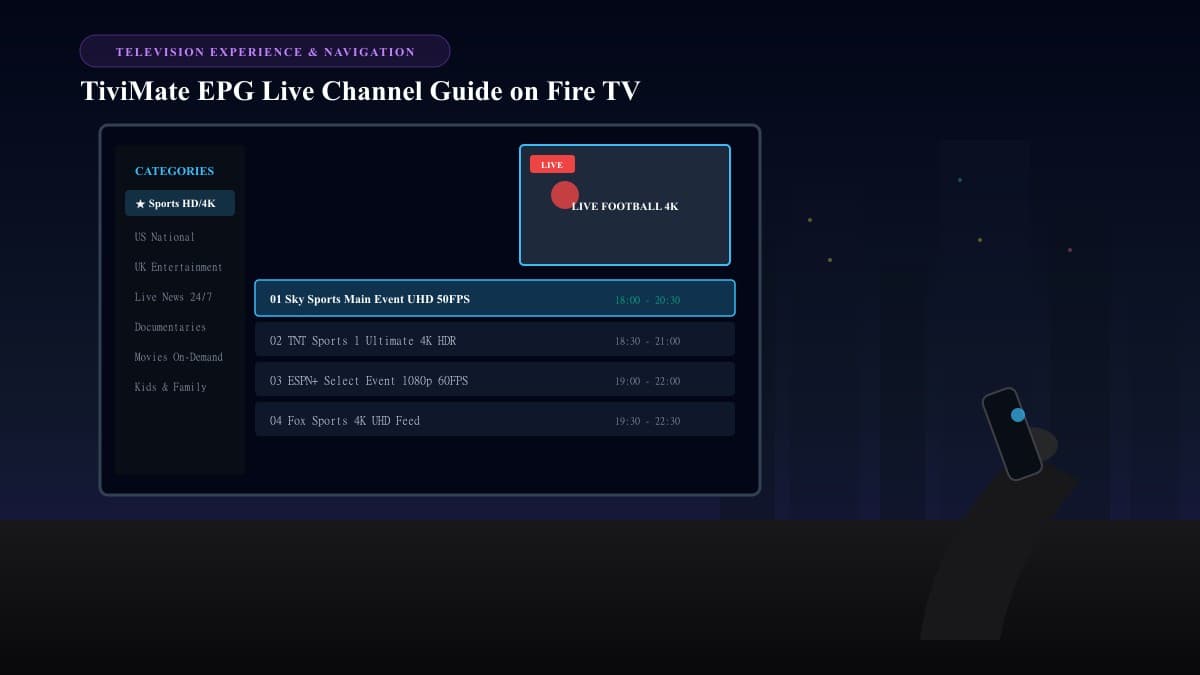
Complete Walkthrough: Setting Up IPTV on Firestick
Because specialized IPTV players are distributed directly via APK packages, setup requires unlocking developer permissions and sideloading via the Downloader app:
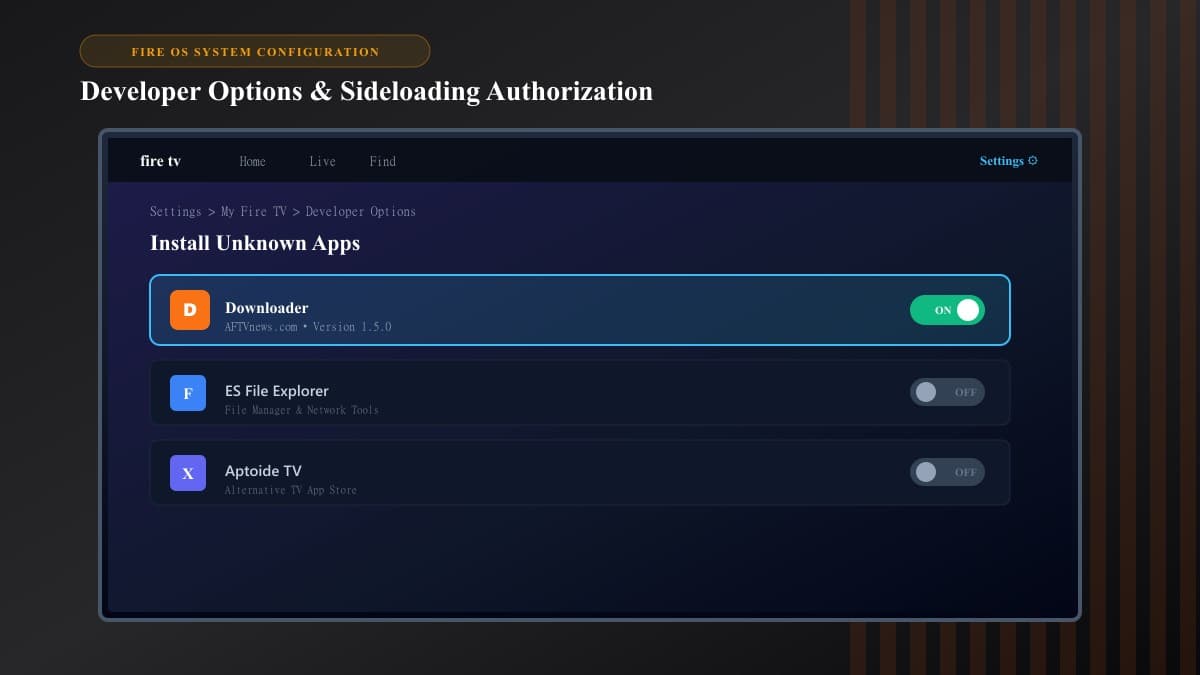
1Install the Downloader Application
Go to Find > Search from the Firestick home screen, type Downloader, and install the orange application developed by AFTVnews.
2Enable Developer Options & Unknown Apps
Navigate to Settings > My Fire TV > Developer Options. Select Install Unknown Apps and toggle Downloader to ON.
*Tip: If Developer Options is hidden on Fire OS 7/8, go to Settings > My Fire TV > About and click your Firestick name 7 times rapidly.
3Download Your Player APK
Launch Downloader, enter the quick shortcode or verified URL for your chosen player, download the package, and click Install. Once completed, select Delete to clear the APK installer file.
4Authenticate via Xtream Codes API
Open the player, choose Xtream Codes API login, and enter your Server URL, Username, and Password. Allow 2–3 minutes for the channel index and TV guide schedules to populate.
Firestick IPTV Optimization: Eliminating Buffering and Frame Drops
If your stream stutters despite a fast home internet connection, apply these technical fixes to eliminate playback latency:
Force Hardware MediaCodec
In your player's playback menu, verify that the Video Decoder is set to Hardware (MediaCodec). This offloads video decompression from the CPU to dedicated silicon, enabling smooth 60 FPS sports playback.
Use the HDMI Extender
Plugging the Firestick directly into the back of a TV traps it against the hot display chassis, causing thermal throttling. Always use the included flexible HDMI extender to let cool air circulate around the stick.
Stream on 5 GHz Wi-Fi or Ethernet
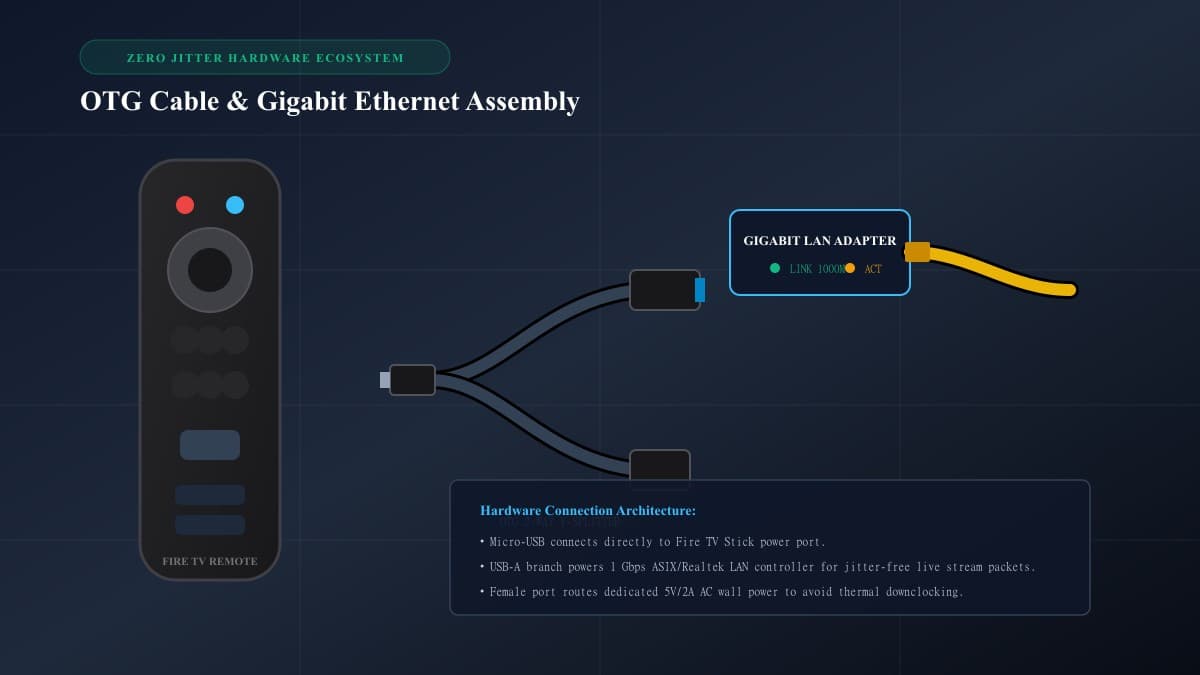
2.4 GHz wireless frequencies suffer severe packet collision from household electronics. Connect your Firestick to a 5 GHz wireless network, or install an OTG Ethernet adapter to achieve zero packet jitter.
Bypass ISP Throttling with Custom DNS
Configure your Firestick network settings with Cloudflare DNS (1.1.1.1) or Google DNS (8.8.8.8) to prevent your internet service provider from intercepting and throttling your live stream feeds.
Frequently Asked Questions About IPTV Firestick
Can I run IPTV on multiple Firesticks with one subscription?
A standard single-line subscription allows one active stream at any given time. Connecting a second Firestick simultaneously with the same login credentials will result in buffering loops or a temporary server lockout. For multi-room setups, select a multi-connection subscription plan.
Why do some channels play audio with a black screen on Firestick?
This happens when your video player fails to decode a specific video stream format with hardware acceleration. To fix this, enter your player playback settings and switch the video decoder engine for that channel to Software or VLC Engine.
What is the recommended buffer size for IPTV on Firestick?
Set your player buffer size to Normal or approximately 2 to 3 seconds. Setting an excessively large buffer exhausts the Firestick RAM, triggering the Fire OS Low Memory Killer to shut down the player.
What internet speed is necessary for 4K streaming on Firestick?
For Full HD (1080p 60 FPS), you need a stable 25 to 30 Mbps. For uncompressed 4K live sports and HDR feeds, maintain at least 50 Mbps with network jitter under 15 ms. See our guide on recommended internet speeds for streaming.
Related Fire TV & IPTV Resources
Ready to Experience nobiptv?
Join thousands of satisfied viewers. Get the best IPTV services with our premium IPTV subscriptions, instant activation, and 24/7 dedicated support.