IPTV to VLC: How to Play Your IPTV Playlist in VLC
VLC is a free media player many people already have installed, and it can open an IPTV playlist in a few clicks. It is a handy way to test a link or watch on a computer. This guide shows the steps, how to fix common playback problems, and where VLC falls short compared with a dedicated IPTV player.
Short answer
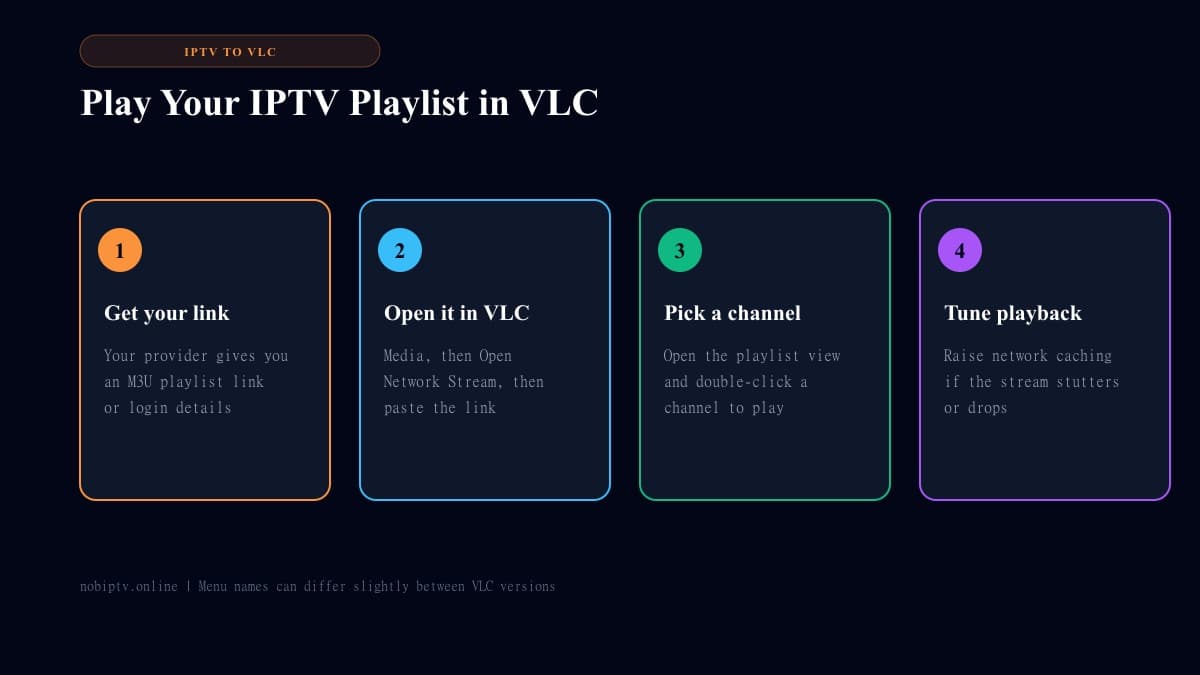
In VLC, choose Media > Open Network Stream, paste the M3U link from your provider, and press Play. Then open the playlist view to pick a channel. You need an active subscription and a playlist link, because VLC only plays what you give it.
What You Need Before You Start
- • VLC installed on your computer or phone, downloaded from the official VideoLAN website or your device's app store.
- • An active IPTV subscription from a provider you trust.
- • Your playlist link (usually an M3U URL) from the provider. VLC plays the content but does not supply any.
- • A steady connection. Check it with our internet speed guide for streaming.
How to Play IPTV in VLC on Windows or Mac
- Open VLC and choose Media > Open Network Stream (on Mac, File > Open Network).
- Paste your M3U playlist link into the network URL box.
- Click Play. VLC loads the playlist and starts the first entry.
- Open the playlist view (View > Playlist) to see all channels, then double-click the one you want.
Menu names can differ a little between VLC versions. If you also want a setup walkthrough for your computer, see our Windows and Mac setup guides.
How to Play IPTV in VLC on Android or iPhone
Mobile VLC works the same way in principle. Open the app, go to the More or Stream section, choose to open a network stream, and paste your link. Layout varies by version, so look for the network stream option in your app. For a mobile player with a channel guide, see our best IPTV player for Android guide.
Fixing Buffering and Playback Problems in VLC
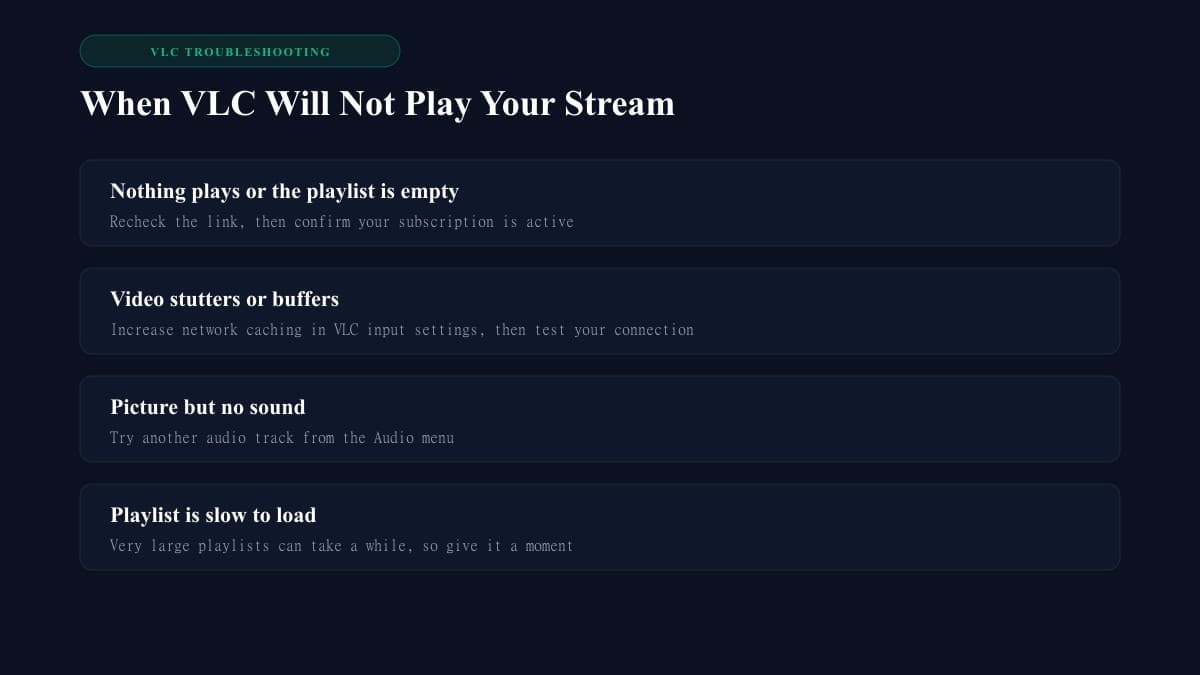
Raise network caching: go to Tools > Preferences, set Show settings to All, open Input / Codecs, and increase the Network Caching value. A higher value adds a short delay but smooths out stuttering.
Nothing plays: recheck that the link was pasted completely, and that your subscription is active. If your whole service seems unreachable, see IPTV is down.
Still buffering: work through how to stop IPTV buffering.
VLC vs a Dedicated IPTV Player
VLC is great for quick tests and for watching on a computer, but it is a general media player. It lacks the full program guide, favorites and fast channel switching that IPTV apps are built around, and its channel list can be cumbersome with large playlists. For daily TV viewing on a living room device, a dedicated player is usually more comfortable. Compare options in our best IPTV player guide.
IPTV to VLC: FAQ
Can I watch IPTV in VLC?
Yes. VLC can open an M3U playlist link or a direct stream address, as long as you have one from your provider and your subscription is active.
Does VLC support Xtream Codes logins?
VLC does not have a built-in Xtream login screen. If your provider gives you an M3U link, use that. Some providers also offer a playlist link built from your username and password, so check what yours supplies.
Why is there no TV guide in VLC?
VLC is a general media player, not a dedicated IPTV app. It shows a channel list but does not provide the full program guide that IPTV player apps offer.
How do I stop VLC from buffering on IPTV?
Open Tools, then Preferences, switch to showing all settings, and raise the network caching value under Input / Codecs. Also check your internet speed and Wi-Fi signal, since most buffering starts there.
Is VLC or a dedicated IPTV player better?
VLC is good for quickly testing a link or watching on a computer. A dedicated player is usually better for daily viewing because of its channel guide, favorites and easier channel switching.
Need a Playlist to Play?
VLC needs a subscription and playlist link from your provider. Compare our plans to find one that fits your household.
Ready to Experience nobiptv?
Join thousands of satisfied viewers. Get the best IPTV services with our premium IPTV subscriptions, instant activation, and 24/7 dedicated support.