IPTV on Samsung TV: How to Set It Up on a Smart TV
A Samsung smart TV can run IPTV with no extra box, as long as you can install a compatible player. This guide walks through the general steps, explains why app choice depends on your TV, and covers what to do when something does not work.
Short answer
Open the app store on your Samsung TV, search for an IPTV player, install it, and add the playlist link or login details from your provider. App availability varies by model year and region. If no suitable player is offered for your TV, use a streaming device on an HDMI port instead.
Before You Start
- • An active IPTV subscription with a playlist link or login details from your provider. Not sure which you have? Read M3U vs Xtream Codes.
- • Your TV connected to the internet, ideally by cable or a strong Wi-Fi signal.
- • A phone or computer to make adding long links easier than typing with the remote.
How to Set Up IPTV on a Samsung TV
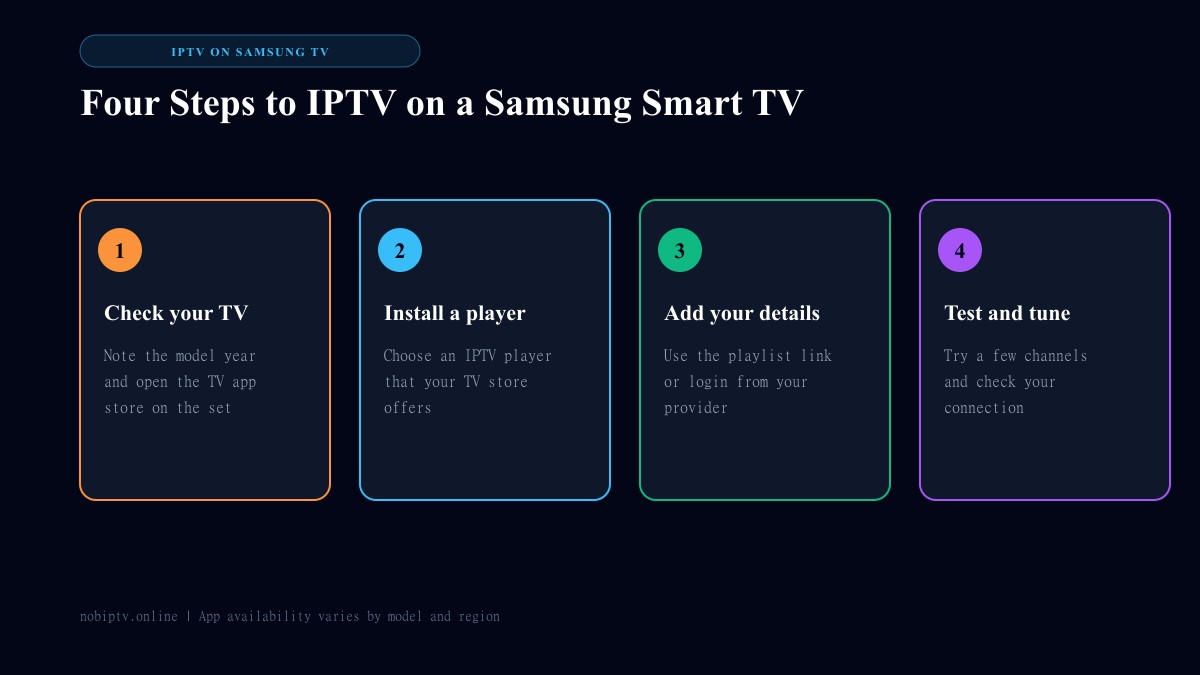
- Update your TV. In the TV settings, check for software updates so the app store works properly.
- Open the app store on the TV and search for an IPTV player by name.
- Install the player and open it.
- Add your playlist or login. Some apps show a code or address on screen so you can add your playlist from a phone or computer. Others let you type it in directly.
- Open a channel to confirm playback works.
Screens and menu names differ by TV model and app version. For the general smart TV walkthrough, see our Smart TV setup guide.
If Your Samsung TV Has No Suitable App
Older sets and some regions have fewer apps to choose from. Rather than hunting for unofficial downloads, the simpler route is a streaming device in an HDMI port. Our Roku vs Firestick for IPTV comparison helps you choose, and the supported devices page lists what works with nobiptv.
Common Problems on Samsung TVs
Buffering or freezing: test your connection first. See how to stop IPTV buffering and the internet speed guide.
Login or authorization errors: recheck every character of your details. See failed to authorize in IPTV Smarters for the common causes.
Empty channel guide: follow IPTV EPG not working.
Nothing loads at all: check whether the service is reachable with IPTV is down.
IPTV on Samsung TV: FAQ
Can I watch IPTV on a Samsung smart TV?
Yes, if you can install an IPTV player app on the TV and you have a subscription from a provider. Which apps are available depends on your TV's model year and region, so check the app store on your own TV.
Do I need a Firestick or other box for IPTV on Samsung?
Not necessarily. If a suitable player is available in your TV's app store, you can use it directly. If not, a streaming device plugged into an HDMI port is a common alternative. See our Roku vs Firestick comparison.
Why can't I find an IPTV app on my Samsung TV?
Older models and some regions have fewer apps. Search the TV's app store by name, check that the TV software is up to date, and consider a streaming device if nothing suitable is offered.
What do I need to add my channels?
Your provider supplies either a playlist link or login details. Some TV apps show a code on screen so you can add the playlist from a phone or computer, which is easier than typing with the remote.
Why does IPTV buffer on my Samsung TV?
The usual causes are a weak Wi-Fi signal or a slow connection. A wired connection helps if your TV has an Ethernet port. See our buffering guide.
Ready for Your Samsung TV?
Check supported devices, then compare plans.
Ready to Experience nobiptv?
Join thousands of satisfied viewers. Get the best IPTV services with our premium IPTV subscriptions and dedicated support.