VLC IPTV: What It Does Well, Where It Falls Short, and What to Use Instead
VLC Media Player is one of the most recognizable media players in the world, and it is free. For cord-cutters, that makes it an easy way to test an IPTV playlist or watch on a computer. But how does it compare with apps built for live TV?
Short Answer: Is VLC Good for IPTV?
VLC is a solid choice for testing a playlist and for casual viewing on a Windows, Mac, or Linux computer. It plays most common stream formats without extra codec packs. But VLC is a general media player, not a television app: it has no visual Electronic Program Guide (EPG), no Xtream Codes login, and it is awkward to use with a TV remote.
Who it suits: people who watch on a PC or laptop, want a free way to check that a playlist works, or need a quick fallback player. Who should look elsewhere: anyone who mainly watches on a Smart TV, Firestick, or Apple TV, or who wants a channel guide, favorites, and catch-up.
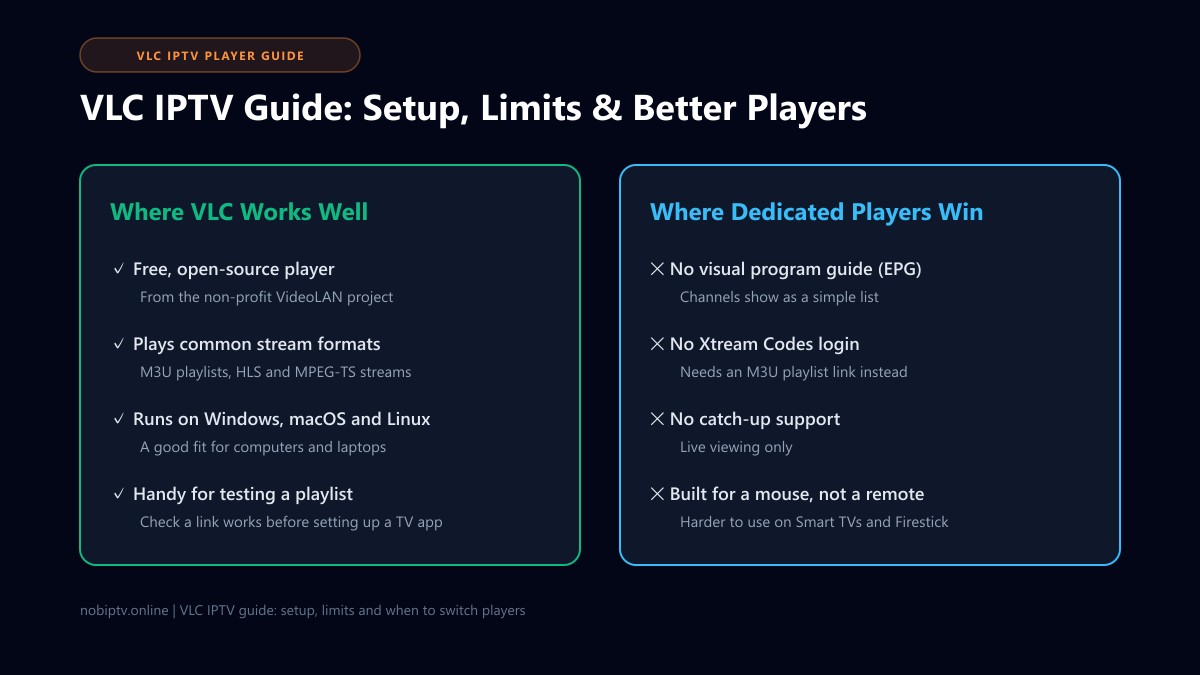
How VLC Media Player Handles Live IPTV Streams
At its core, IPTV is simply digital video delivered over Internet Protocol networks using standard streaming formats such as MPEG-TS (Transport Stream), HLS (HTTP Live Streaming), and RTSP. Because the VideoLAN project built VLC from the ground up with built-in demuxers and decoders, VLC can ingest and decode these live stream packets directly without requiring external codec packs.
To load channels into VLC, your provider gives you an M3U or M3U8 playlist. This plain-text file lists stream URLs paired with metadata like channel names, language flags, and group identifiers. When you load this link, VLC parses each entry into its internal playlist queue.
Setting Up IPTV in VLC: The Short Version
Loading a playlist takes a minute. In VLC, open Media > Open Network Stream (on macOS, File > Open Network...), paste the M3U playlist link from your provider, and press Play. If you downloaded a .m3u or .m3u8 file instead, use Media > Open File or drag the file onto the VLC window. A link is usually the better choice because a downloaded file does not pick up later changes to your provider's channel list. Menu names can differ slightly between VLC versions.
For the full walk-through, including Android and iPhone, read our IPTV to VLC setup tutorial.
Browsing and Searching Channels in VLC
VLC shows only the active video by default. To see the full channel list, press Ctrl + L (or open View > Playlist on Windows, Window > Playlist on Mac) and use the search box in the playlist panel to filter channels.
Who Should Use VLC for IPTV (and Who Shouldn't)
VLC is a good fit if you…
- want to check that a new playlist link works before setting up a TV app,
- watch mostly on a Windows, Mac, or Linux computer,
- need a free backup player when your main app has a problem,
- want to read playback messages to see why a stream fails.
Key Advantages of Using VLC for IPTV
VLC remains a favorite tool for technical cord-cutters due to several distinct advantages:
100% Free & Open Source
VLC is free, open-source software developed by the non-profit VideoLAN project, so there is nothing to buy or unlock just to play a playlist.
Universal Codec Support
VLC includes decoders for common IPTV formats such as H.264, H.265 (HEVC), MPEG-2, AAC, and AC3, and can open MPEG-TS and HLS streams, so you generally do not need a separate codec pack.
Cross-Platform Portability
VLC runs on Windows, macOS, and Linux, and its basic playback controls are similar across them, though some menu names differ by system and version.
Instant Diagnostic Feedback
If a stream will not play, VLC's log (Tools > Messages) can show connection and playback errors, which helps you tell a playlist problem from a network problem.
The 5 Major Limitations of VLC for Daily IPTV
While VLC is technically capable, treating it as your primary home entertainment system reveals serious friction points:
1. No Visual Electronic Program Guide (EPG)
Modern IPTV viewers expect an interactive TV grid showing current programming, future air times, and episode summaries. VLC only shows an alphabetical or numerical list of channel labels. For true guide integration, explore our IPTV EPG guide.
2. No Native Xtream Codes API Integration
Most modern IPTV subscriptions use the Xtream Codes protocol for fast channel categorization, VOD indexing, and automated account renewal. VLC requires raw M3U URLs. Learn more in our comparison of M3U vs Xtream Codes.
3. No Catch-Up TV or Cloud DVR
Some IPTV apps can use a provider's catch-up or archive feature (where offered) to replay recent programs. VLC has no built-in support for that, so you can only watch what is live.
4. Clunky Handling of Huge Channel Lists
VLC shows a playlist as one long list. With a very large playlist that can be slow to scroll and search, and there are no categories or favorites. Dedicated players group channels into folders and let you save favorites.
5. Poor Remote Control & TV Experience
VLC is designed around a mouse and keyboard. On a TV with a directional remote it is much harder to browse than an app built for television. For TV setups, see our guides for Samsung TV and the devices we support.
Quick VLC Tuning for Smoother IPTV
Most playback problems in VLC come down to three settings. We keep the step-by-step instructions in one place so they stay accurate: see VLC IPTV not working: 7 fixes.
Network caching
A larger buffer can smooth out stutter on live streams, at the cost of a slightly later start. It is found under Tools > Preferences > Input / Codecs with settings set to All.
Hardware decoding
If you see green blocks or flicker, switching hardware-accelerated decoding off can help; on slower machines, leaving it on can reduce load.
Deinterlacing
Some live sports channels use interlaced video. Turning on Video > Deinterlace can remove jagged lines during fast motion.
Still stuttering? Work through how to stop IPTV buffering, which covers connection and provider causes too.
Comparison: VLC vs. Dedicated IPTV Player Apps
To decide whether to use VLC or a dedicated IPTV client like TiviMate or IPTV Smarters Pro, review this feature comparison:
| Feature | VLC Media Player | Dedicated IPTV Player |
|---|---|---|
| License & Cost | 100% Free, Open Source | Free or paid, varies by app |
| Visual EPG Guide | ✕ Not available | ✓ Full timeline grid |
| Xtream Codes Login | ✕ Manual M3U only | ✓ Native API support |
| Remote Control Navigation | Poor (mouse-first) | ✓ Designed for TV remotes |
| VOD Movie & Series Sorting | Basic text list | ✓ Posters & genres (varies by app) |
| Multi-Screen / Quad View | Multiple desktop windows | ✓ Offered by some apps |
| Best Use Case | Desktop testing, PC/Mac playback | Living room Smart TVs & streaming boxes |
For a comprehensive review of top player options across Android, Firestick, and Apple devices, read our complete guide to the best IPTV players. If you stream predominantly on PC or Mac, also check our dedicated Windows setup guide and Mac setup guide.
Frequently Asked Questions About IPTV on VLC
Can I use VLC Media Player to watch live IPTV?
Yes. VLC Media Player natively plays IPTV streams provided in M3U or M3U8 playlist formats. You can paste an M3U network link directly into VLC or download the playlist file to your computer and open it like any local video file.
Does VLC support Xtream Codes API logins?
No. VLC lacks an Xtream Codes login panel requiring a server URL, username, and password. To watch your subscription in VLC, you must convert your credentials into a standard M3U playlist link or request an M3U URL directly from your IPTV provider.
Can I add a working Electronic Program Guide (EPG) to VLC?
VLC does not have a native, interactive grid-style EPG interface. While VLC can parse basic channel names inside an M3U playlist, it cannot render XMLTV program timelines, upcoming show descriptions, or time-shifted catch-up schedules.
Why does IPTV buffer or stutter in VLC and how do I fix it?
Live streams can stutter when VLC's network cache is smaller than your connection's ups and downs. Raising the Network caching value (Tools > Preferences, set Show settings to All, then Input / Codecs) usually helps. The default can differ between VLC versions, so check the value shown on your own install. Our VLC IPTV fixes guide has the full steps.
When should I switch from VLC to a dedicated IPTV player?
VLC works well for desktop testing, quick channel checks, and laptop viewing. If you want a television-like experience with a program guide, category sorting, remote-friendly controls, and multi-screen viewing on a Smart TV or streaming box, a dedicated IPTV player is a better fit.
Is VLC safe to use for IPTV?
VLC is a well-known open-source player from the non-profit VideoLAN project, and the player itself is not the risk. What matters is the playlist you load: use an M3U link from a provider you trust, keep your playlist URL private because it contains your account details, and download VLC only from the official VideoLAN website.
Watch on the Device That Suits You
Whether you watch in VLC on a computer or in a dedicated app on your TV, see which devices nobiptv supports and what each plan includes.
Ready to Experience nobiptv?
Join thousands of satisfied viewers. Get the best IPTV services with our premium IPTV subscriptions and dedicated support.