M3U Playlists for IPTV Sports: Complete Setup & Performance Guide
For cord-cutting sports fans, an M3U playlist is the direct pipeline to live football, soccer, basketball, combat sports, and racing. Here is how sports M3U links work, the critical differences between free public lists and dedicated provider feeds, and the player tweaks that keep your streams buffer-free through stoppage time.
Short Answer: How to Stream Live Sports via M3U Playlists
An M3U playlist for IPTV sports links your media player directly to live video streams of regional, national, and international sports networks. To achieve flawless match viewing, you must use a dynamic web link (not a downloaded file) with verified 50 FPS or 60 FPS feeds.
While open-source directories offer free public lists for minor sports, major league broadcasts (NFL, Premier League, UFC, Champions League) require managed server capacity to prevent kickoff crashes. Set your player buffer between 3 and 5 seconds and connect via Ethernet to eliminate stutter.
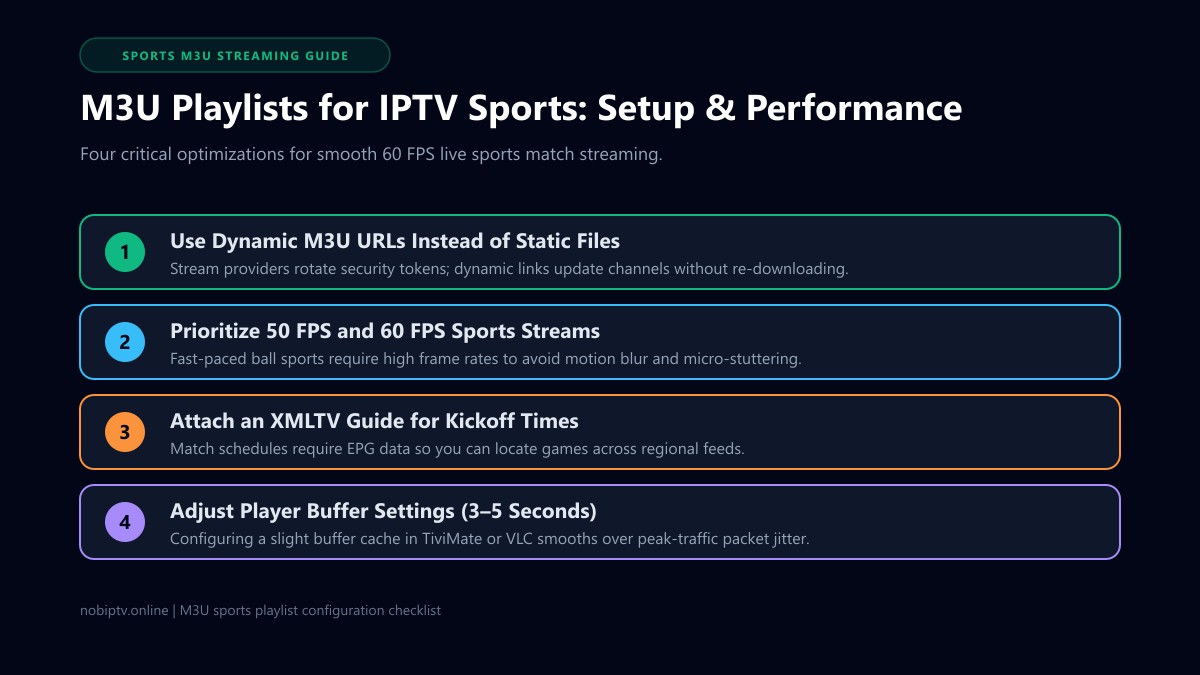
How an M3U Playlist Works for Live Sports
At its core, an M3U playlist is a structured text file using the UTF-8 format that indexes video stream addresses. In sports streaming, an extended M3U format (#EXTM3U) is required because it attaches critical broadcast metadata to each stream line.
A typical sports channel entry looks like this:
#EXTINF:-1 tvg-id="SkySportsMainEvent.uk" tvg-name="Sky Sports Main Event FHD 50FPS" group-title="UK Sports" tvg-logo="https://example.com/logos/skymain.png",Sky Sports Main Event FHD 50FPS
http://streaming-server.example:8080/live/username/password/12345.ts
When your media player parses these lines, the group-title organizes channels into sports clusters, tvg-id synchronizes live kickoff schedules from your EPG file, and the destination URL pulls the real-time HLS or MPEG-TS video stream.
Dynamic M3U Links vs. Downloaded Files
Always paste your provider's live web link instead of downloading a static .m3u file to your Firestick or PC. Sports streaming servers frequently rotate tokenized session keys. A dynamic URL automatically fetches the newest stream locations every time you launch your player.
M3U Links vs. Xtream Codes
While M3U playlists work on almost any media player, many viewers prefer using Xtream Codes API credentials when available. As explained in our guide to M3U vs Xtream Codes, Xtream Codes downloads category folders incrementally, reducing initial load times on streaming sticks.
Public Free Sports Playlists vs. Dedicated Sports IPTV
Searching the web for free sports M3U links brings up countless GitHub repositories and pastebin entries. Understanding the vast gap between community-maintained public playlists and managed provider streams saves hours of frustration on game day:
| Feature | Dedicated Provider Sports M3U | Public Free M3U Playlists |
|---|---|---|
| Peak Match Stability | High (load-balanced CDN edge routing) | Extremely poor (chokes or drops at kickoff) |
| Sports Frame Rate | True 50 FPS / 60 FPS feeds | Usually 25–30 FPS (choppy ball motion) |
| Major League Coverage | NFL, Premier League, NBA, UFC, F1, Champions League | Free-to-air sports, collegiate, and regional feeds |
| Electronic Program Guide | Integrated XMLTV with exact match kickoff times | Requires separate manual guide scraping |
| Link Longevity | Permanent active subscription token | Dead within days or hours without warning |
As detailed in our public IPTV playlist analysis, open-source projects like iptv-org do an admirable job cataloging legal public television feeds. However, they explicitly exclude pirated pay-per-view and commercial sports networks. Third-party scraper lists that claim to offer premium sports for free inevitably collapse the moment a marquee game starts.
How to Set Up a Sports M3U Playlist in Your Player
Setting up your sports playlist properly ensures you can switch between simultaneous games instantly without losing your place. Follow these steps across your preferred streaming apps:
TiviMate IPTV Player (Firestick & Android TV)
TiviMate is the premier app for live sports thanks to multi-screen viewing and lightning-fast zapping. Open Settings > Playlists > Add Playlist, choose M3U Playlist, and paste your dynamic URL. When prompted, enter your provider's XMLTV guide URL so match schedules populate automatically.
Explore our full best IPTV players guide or the Fire TV setup tutorial.
VLC Media Player (Windows, Mac & Mobile)
VLC is ideal for quickly verifying an M3U sports link on a computer. Launch VLC, navigate to Media > Open Network Stream (Ctrl+N), paste the M3U link, and click Play. Use the playlist view (Ctrl+L) to search for specific sports network names.
Step-by-step PC instructions: IPTV to VLC Setup.
IBO Player & Smart TV Apps
On Samsung and LG Smart TVs, install IBO Player from the official TV store. Note your Device ID and Device Key displayed on screen, navigate to the IBO web management portal on your computer or phone, and paste your sports M3U URL into your playlist slots.
4 Critical Player Tweaks for Buffer-Free Sports Streaming
Because sports broadcasts deliver continuous, high-bitrate video with rapid scene shifts, standard media player defaults often result in micro-stutter. Make these four adjustments to optimize your setup:
Adjust Buffer Size to 3–5 Seconds
Most IPTV players default to "No Buffer" or 500 milliseconds for fast channel switching. For live sports, increase your buffer size to Medium or Large (3 to 5 seconds). This builds a safety cushion that absorbs momentary packet jitter without noticeable delay.
Enable Hardware Acceleration
Decoding 1080p 60 FPS or native 4K sports video using software decoding quickly overheats compact streaming sticks. Ensure Hardware Decoding (HW or MediaCodec) is enabled in your player's video playback settings.
Connect via Ethernet or 5 GHz Wi-Fi
2.4 GHz Wi-Fi frequencies are plagued by household radio congestion that manifests as stream buffering. Connecting your streaming device via a direct Ethernet cable or 5 GHz Wi-Fi band resolves intermittent stutter in over 85% of cases.
Check Your Guide Synchronization
Live matches occasionally shift to alternate overflow channels. Ensure your player updates guide data daily so kickoff times and schedule adjustments appear accurately. If your schedule is blank, review our guide to fixing empty IPTV EPGs.
For more comprehensive network diagnostic steps, read our in-depth walkthrough on how to stop IPTV buffering.
Why Free Sports Playlists Inevitably Fail at Kickoff
The fundamental flaw of circulating free sports M3U files is network economics. Serving an uncompressed 1080p 60 FPS sports feed consumes between 8 Mbps and 15 Mbps of sustained outbound bandwidth per viewer.
When 5,000 sports fans attempt to access the same free link on an unmanaged server during an NFL kickoff or Champions League final, the required bandwidth exceeds 50 Gbps—far beyond what any free host can deliver. The server immediately drops connections, causing the stream to freeze or cut out entirely.
Cord-cutters who want dependable weekend match coverage without kickoff anxiety choose managed services like nobiptv. Ask any provider how it handles peak sporting moments. You can test your connection risk-free by requesting an IPTV free trial before committing.
Frequently Asked Questions About Sports M3U Playlists
What is an M3U playlist for IPTV sports?
An M3U playlist for sports is a plain-text file or web link containing stream addresses for live sports television channels. It includes extended metadata tags (#EXTINF) that define channel display names, logos, regional category groupings ('Sports' or 'Live Events'), and program guide identifiers (tvg-id).
Why do free sports M3U playlists stop working during live matches?
Free public sports playlists usually point to unmanaged servers or temporary test streams. When thousands of fans tune in simultaneously at kickoff for a major football or soccer game, the host server runs out of bandwidth, causing the stream to buffer endlessly, loop, or go completely offline. Many free streams also rely on short-lived session tokens that expire after minutes.
Should I download an .m3u file or use an M3U web link?
Always use an M3U web URL link rather than downloading a static .m3u file to your device. Streaming providers constantly update channel addresses, port mappings, and authentication tokens. A web link refreshes automatically whenever your media player loads, whereas a downloaded file quickly becomes obsolete with dead links.
Why is 50 FPS or 60 FPS necessary for live sports streaming?
Standard movies and television shows are broadcast at 24 or 30 frames per second (FPS). However, high-speed sports like football, basketball, hockey, and tennis involve rapid ball tracking and panning camera movements. At 30 FPS, motion appears blurry or jittery. A true 50 FPS or 60 FPS sports stream delivers smooth, crisp motion across your screen.
How do I add a program guide (EPG) to my sports M3U playlist?
Most IPTV players allow you to attach an XMLTV EPG URL in the playlist settings. If your provider supplies an EPG link, enter it in your player's 'EPG Sources' menu. The player then matches the tvg-id tags in your M3U playlist to the guide schedule, showing upcoming kickoff times and game matchups.
Which player app is best for playing sports M3U playlists?
On Firestick and Android TV devices, TiviMate is widely considered the top choice because of its ultra-fast channel zapping, smooth 60 FPS hardware decoding, and multi-view capabilities. On Smart TVs, IBO Player is dependable. On PC or Mac, VLC Media Player or IPTV Smarters Pro provide quick, reliable playback.
Never Miss a Game with 60 FPS Sports Streaming
Experience anti-freeze stability, crisp 60 FPS sports feeds, and comprehensive EPG kickoff schedules across all your streaming devices.
Ready to Experience nobiptv?
Join thousands of satisfied viewers. Get the best IPTV services with our premium IPTV subscriptions and dedicated support.